If you are here, chances are you want to export Gmail to EML files; whether to back them up, save individual emails, or move Gmail messages to another email client. The problem? Gmail makes it easy, but it can be tricky if you have a large number of emails. Don’t worry, this blog is especially designed to deal with both types of users. By following this helpful guide, you can save single Gmail emails as .eml files or export multiple Gmail emails into EML files in bulk. So, go through this article to solve your query now!
Why Export Gmail to EML Files? Know Benefits
Users export Gmail emails to EML format for several practical reasons:
- Email backup: Create a secure offline copy of important emails
- Easy migration: EML files work with Outlook, Thunderbird, Apple Mail, and more
- Individual email storage: Each email is saved separately
- Preserve original format: Keeps headers, metadata, and attachments
- Future access: Open emails without logging into Gmail
The best way to export Gmail to EML files depends on what you want to do with them afterward. Some methods are designed for few emails and some for bulk. So, first decide the number of emails, availability of required resources and etc. After that, go through each method and then choose which suits best to your needs.
How to Download EML File from Gmail Individually?
Step 1. Log in to your Gmail account with your credentials on your local system.
Step 2. Now, choose the email that you want to export and open it.
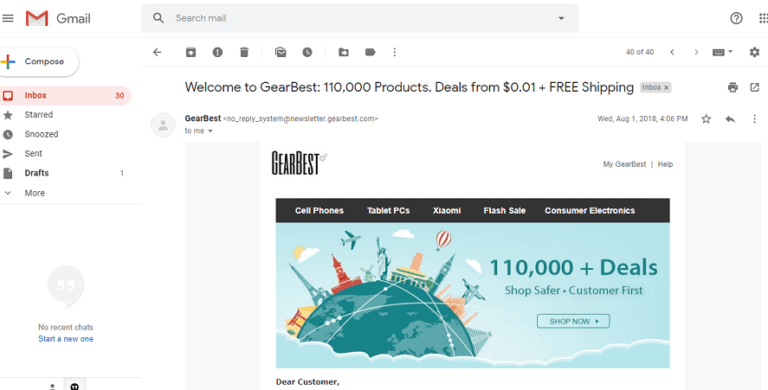
Step 3. After that, click on the three vertical dots icon and select the download message option.

Step 4. Repeat the process again and again to convert other Gmail emails into .eml format.
How to Export Gmail Emails to EML Using Thunderbird
If you choose this method, then you need to install Thunderbird on your system. After that, configure your Gmail account with it. Then follow the given instructions –
- Open the Thunderbird app on your computer.
- Click on Tools, then go to Account Settings.
- Enter your Gmail email and password to sign in.
- Set up the IMAP settings and click Finish to complete the process.
- Press CTRL + A to select all the emails you want to save.
- Right-click on the selected emails.
- Click Save Selected Messages and choose EML Format.
- Pick a folder to save the files and click OK.
Why Manual Methods Are Not Always Reliable?
- Downloading emails one by one takes a lot of time
- Not suitable for large or bulk email export
- Easy to miss important emails by mistake
- Thunderbird setup can be confusing for beginners
- Sync issues may occur with large Gmail accounts
How to Convert Gmail Emails into EML Files in Bulk?
In the above section, we saw that the manual solutions are not capable of batch conversion. So, we use an alternative way to export all emails at once. Xtraxtor stands as the best in this criterion. It is a secure and efficient way to export Gmail to EML files. The software allows you to convert all emails at the same time with complete accuracy. It maintains the original hierarchy of emails during the exporting process.
Moreover, It also provides a preview and search option to view and select the desired emails. The interface of this tool is very simple and easy to use. Any novice user can export Gmail emails to EML files without any complications. It supports all the latest and older versions of Windows Operating Systems.
The software has a free demo version that helps you to check its work efficiency. Click on the free download button to check it now!

Steps to Batch Export Gmail to EML Files
Step 1. Download and run Xtraxtor on your system.
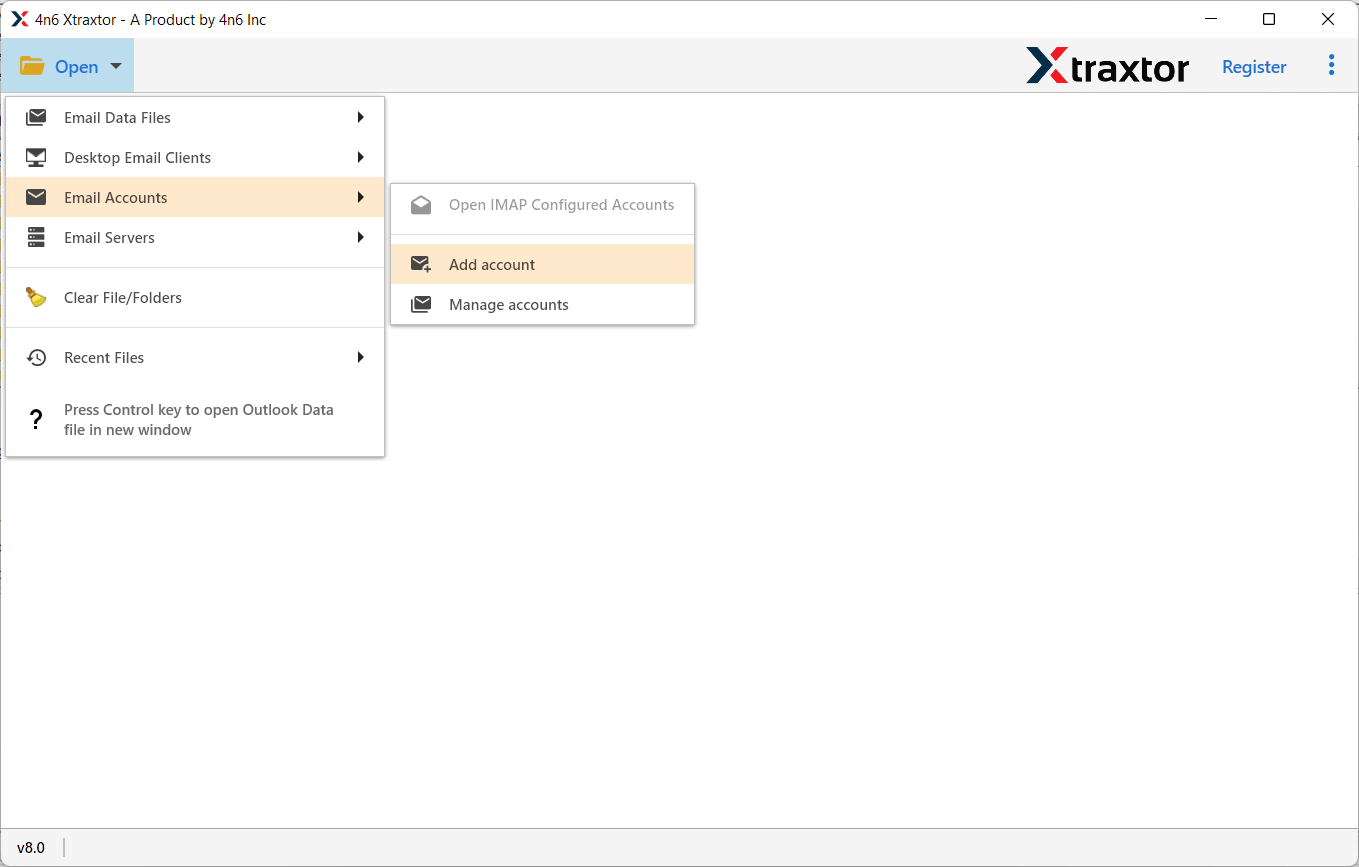
Step 2. Now, Click on Email Accounts >> Add Account.
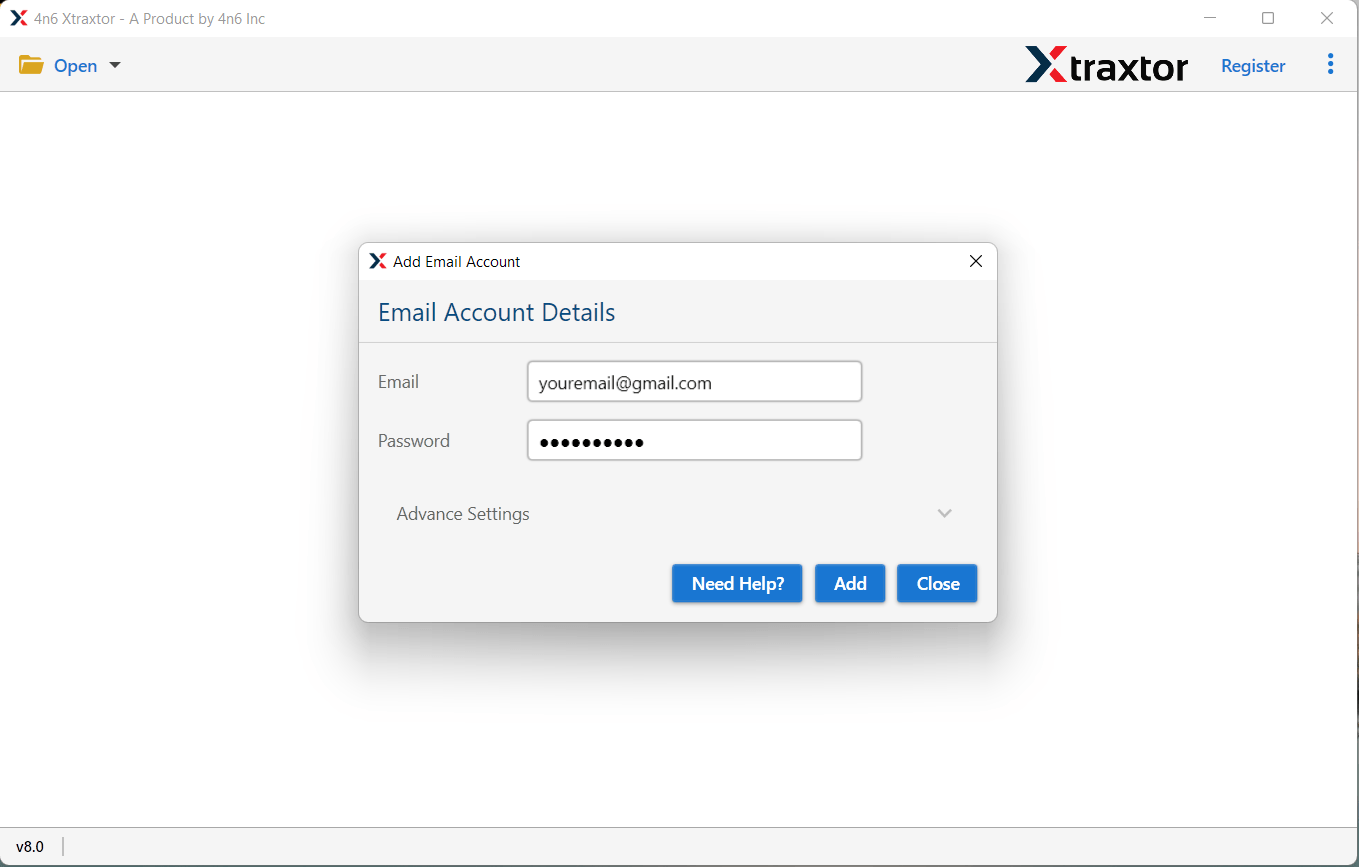
Step 3. Enter your Gmail credentials and click on the Add button.
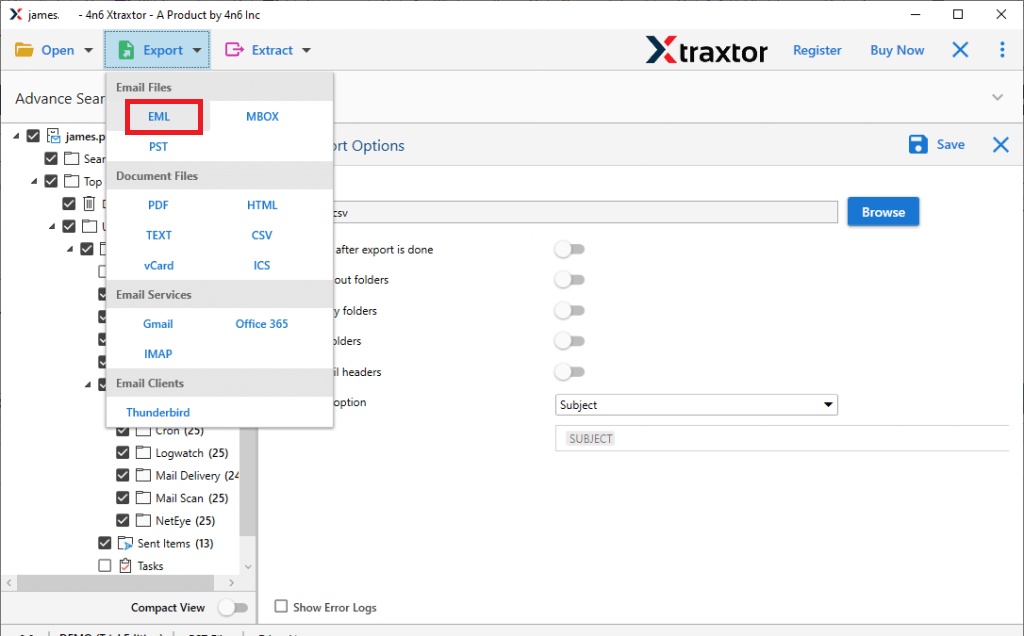
Step 4. After that, click on Export and select EML file format.
Step 5. Click on Browse to set the destination location and click on Save button.
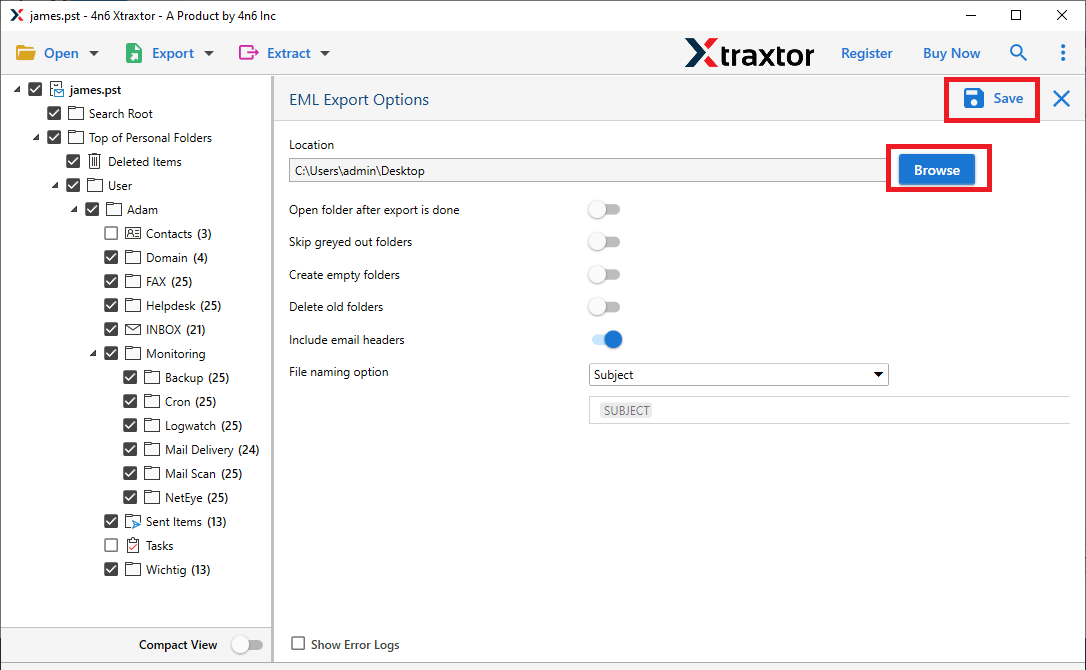
The process is complete. Hence, you can easily convert emails from Gmail to EML file in a few seconds with the help of this tool.
Why Use Xtraxtor Software over Manual Methods?
This utility has many benefits that help you to export Gmail emails to EML files in bulk, which are given below-
- The software converts all Gmail emails at once with accuracy.
- Using this tool, you export Gmail to PST, PDF, MBOX, EML, MSG, HTML, etc. file formats.
- It preserves 100% data integrity and gives accurate results.
- It provides many advanced filter options, such as to, from, date, time, subject, content, etc.
- Directly migrate Gmail emails to Office 365, AOL Mail, and other webmail accounts.
- User-friendly interface for both technical and non-technical users.
- Compatible with Windows 11, 10, 8.1, 8, and all versions.
- A dedicated customer service team to answer users’ queries.
Conclusion
In this blog, we have discussed both manual and professional techniques to export Gmail to EML files. The manual method has lots of limitations in converting Gmail emails to EML format. Therefore, we conclude that for bulk email conversion, it is always used as an alternative method that offers data integrity and data security. The above suggested tool is able to export all emails at once without any hassle.