Undoubtedly, Google Workspace is one of the most widely used business email platforms, trusted by organizations of all sizes. However, there are many situations where the need to export Google Workspace emails to PST arises, such as switching to Microsoft Outlook, creating a local backup, or meeting compliance requirements. If you are looking to export Google Workspace email to PST file in bulk, this blog is absolutely for you.
In this blog, we will explain how to export emails from Google Workspace to PST efficiently and securely. We will cover all the important aspects you should know before starting the migration, along with step-by-step methods to complete the process smoothly.
How to Convert Google Workspace Email to PST for Free?
You can manually export PST from Google Workspace with Outlook. Add your Google Workspace account to Outlook and export emails to PST file.
Follow the steps to export Google Workspace email to PST file-
Step 1. Open MS Outlook on your system.
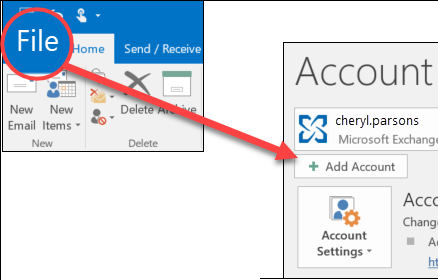
Step 2. Now, click on File >> Add Account to configure Google Workspace account with Outlook.
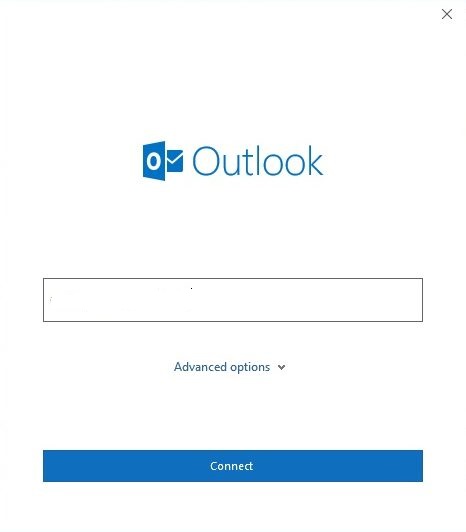
Step 3. Enter your Google Workspace login details and click on the Connect button.
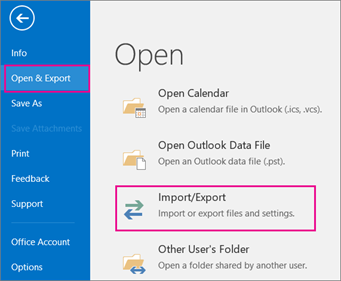
Step 4. After adding the Google Workspace account, restart the Outlook application and click on File >> Open & Export >> Import/Export.
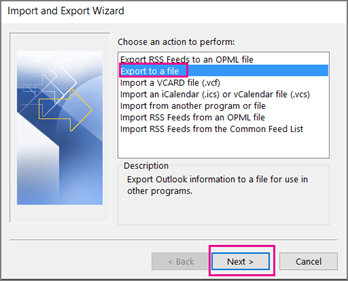
Step 5. Now, choose Export to a File and press the Next button.
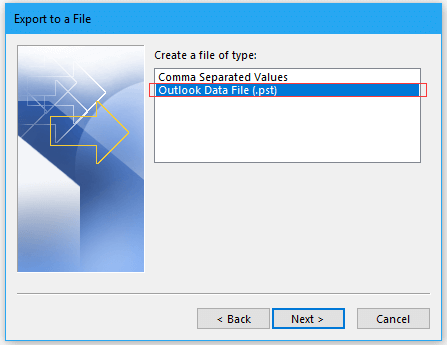
Step 6. Select Outlook Data File (.pst) and click Next.
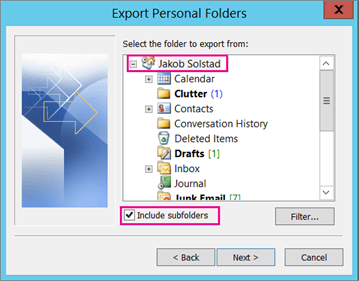
Step 7. After that, select the folders and subfolders of Google Workspace emails to export them to PST file.
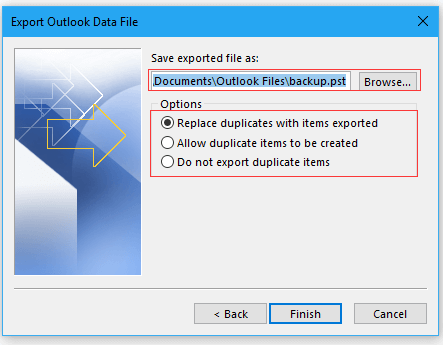
Step 7. Browse the destination location to save the resultant file and then click on the Finish button.
Hence, you can manually export Google Workspace email to PST file.
However, there are a few limitations to it –
- You can’t choose specific emails to export; all emails will be saved.
- The process is long and time-consuming.
- Some steps are tricky, so you need technical knowledge.
- MS Outlook must be installed. If the import/export option is disabled, you can’t export PST files.
How to Export Google Workspace Email to PST Automatically?
Check out the Xtraxtor tool to convert your emails to PST file format. With its simple and user-friendly interface, it is easy to export your data without any hassle. All you need to do is run the tool, enter your workspace login details, and choose PST as a saving option. After that, selecting the targeted location, the tool will start exporting your data in a .pst file on your system. Additionally, if you want to export selected emails, then you can use the filters as well.
Try out its demo version and analyse its working yourself.


Step to Google Workspace to PST with Attachments
Step 1. Launch Xtraxtor on your Windows PC.
Step 2. After that, click on Open >> Email Accounts >> Add Account.
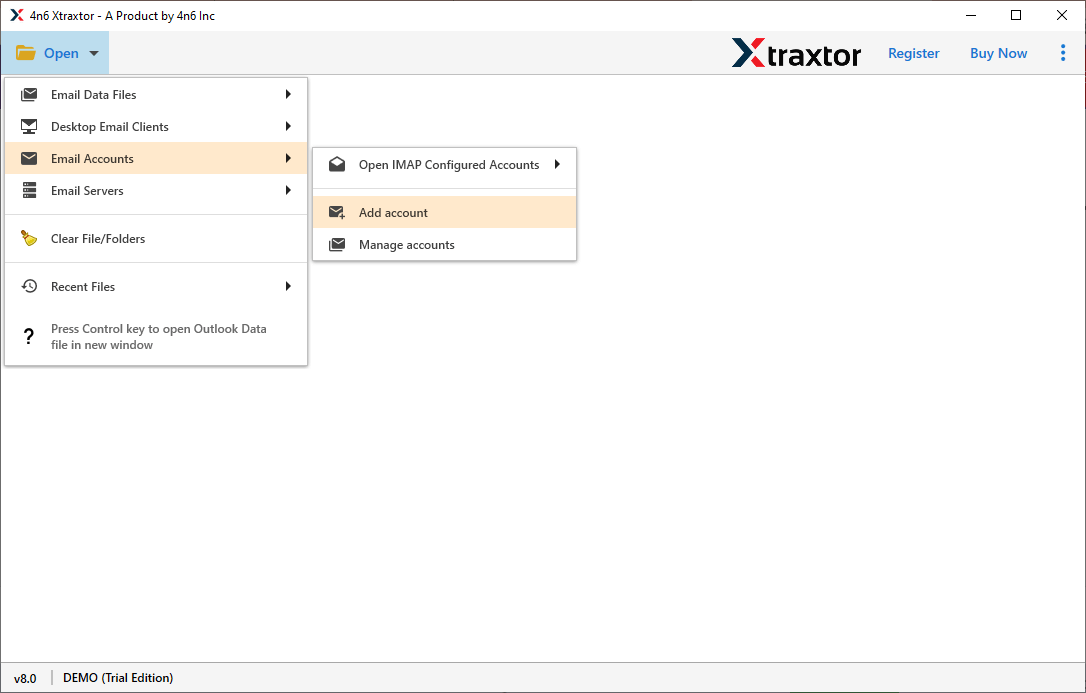
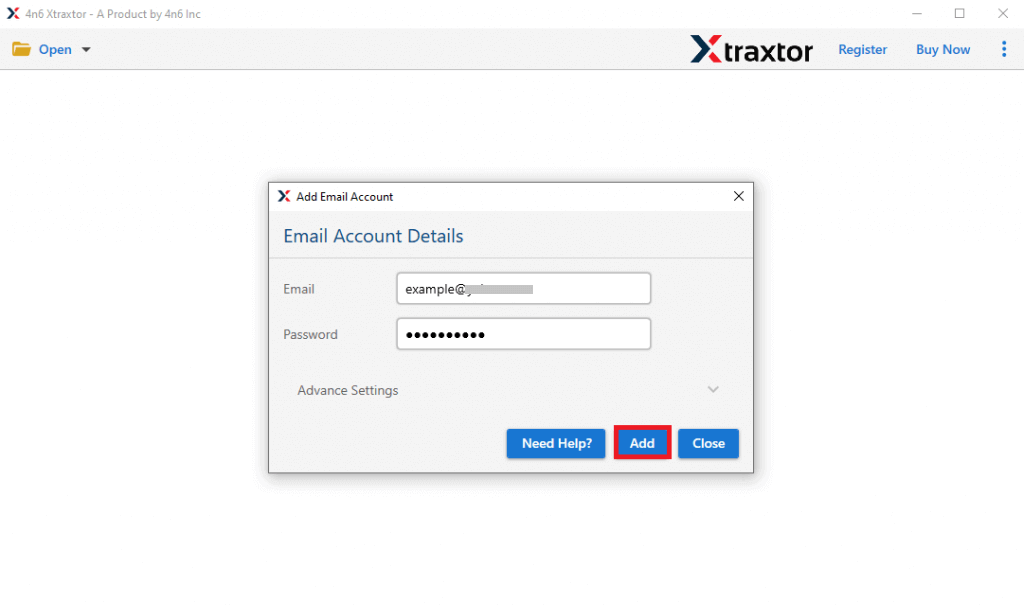
Step 3. Enter Google Workspace account credentials and press the Add button.
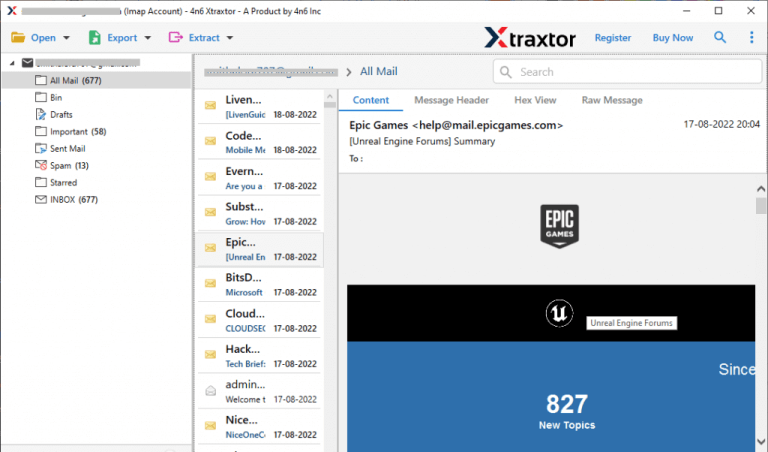
Step 4. Here, you can view all emails from your account before exporting them to PST.
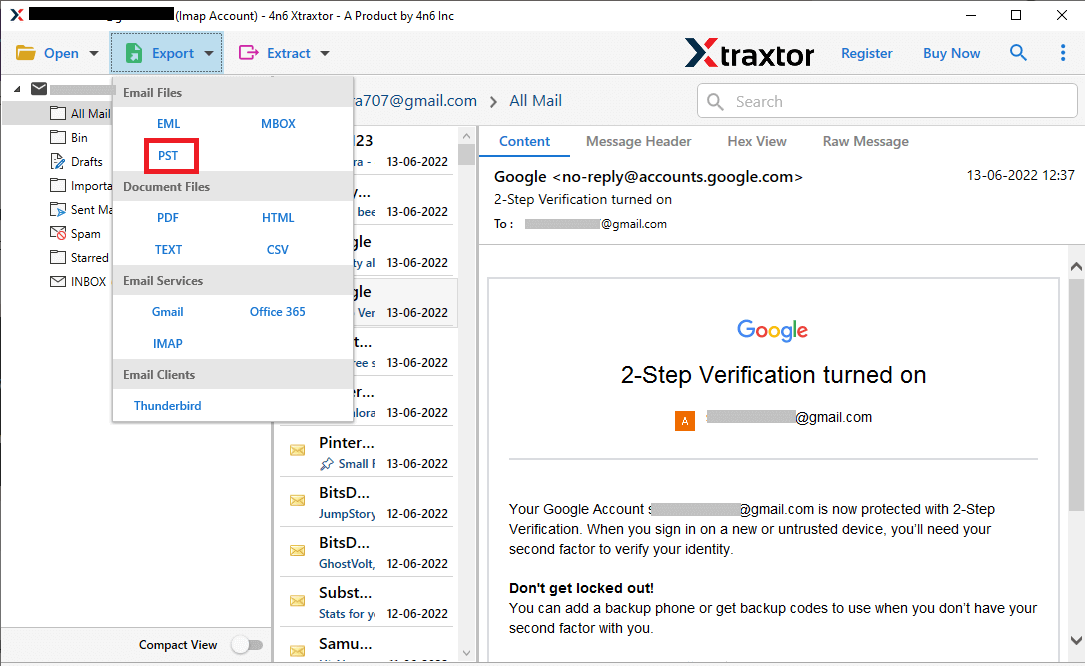
Step 5. After that, go to the Export section and select PST from the given options.
Step 6. Select the Google Workspace Email Folders to convert them to PST.
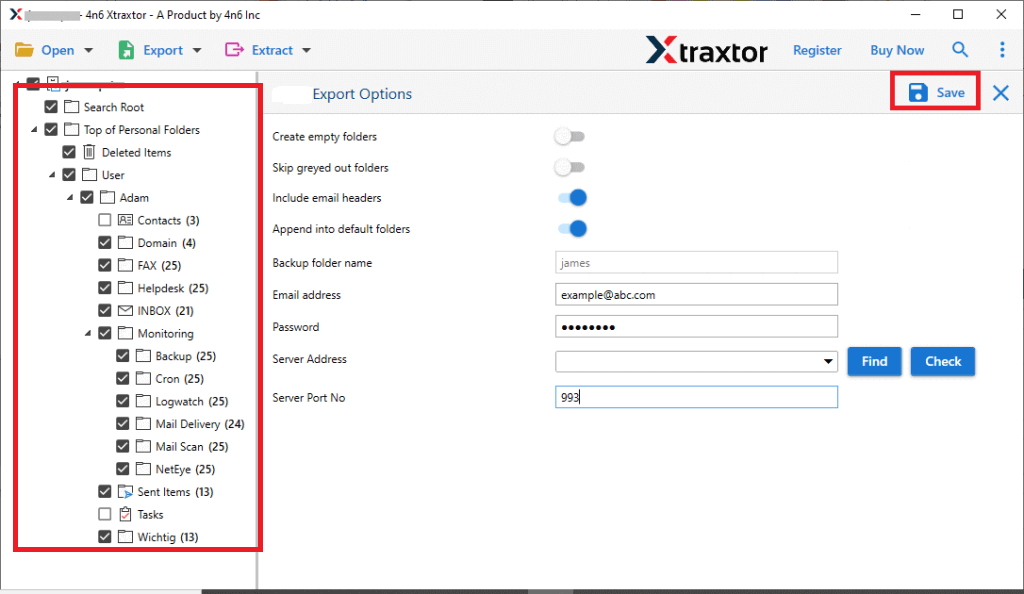
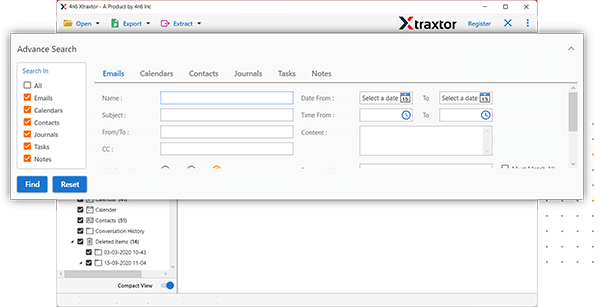
Step 7. Apply the Advanced Filter options from the Filter option tab to export any specific emails.
Step 8. Browse to the location to save the exported file and then click the Save button.
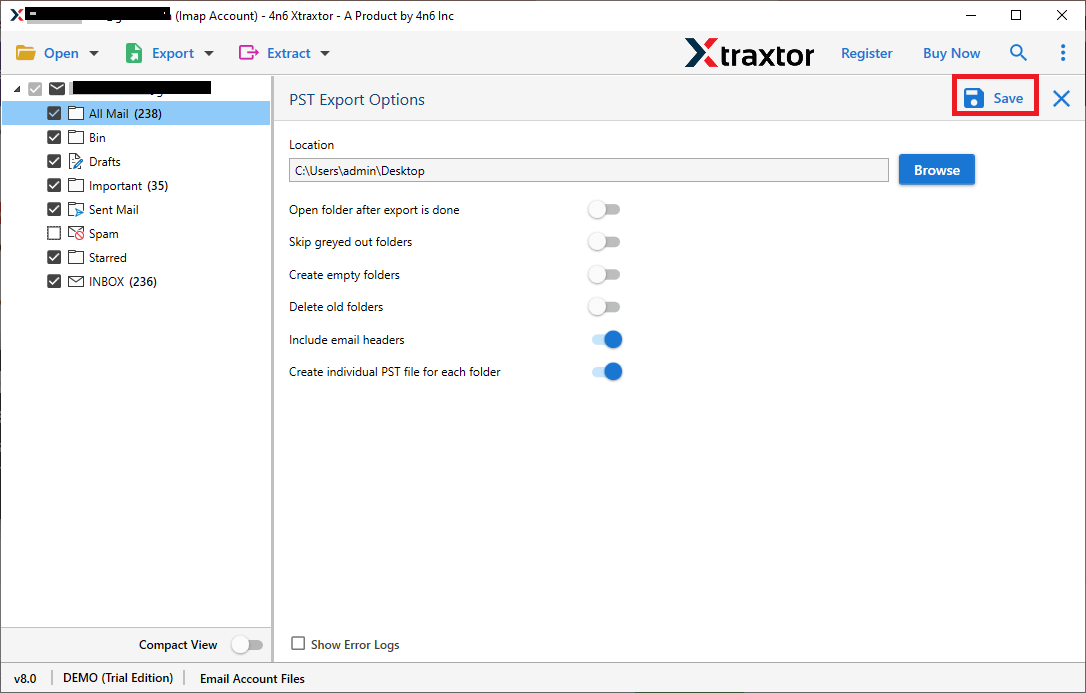
The process is complete! Hence, you can easily export Google Workspace email to PST file format in a few simple clicks.
Why Choose Google Worksapce to PST Export Tool?
There are various advanced features in software that make it better than manual approach. Some of them are-
- Direct Conversion: The software is a stand-alone utility which means you do not need to install Outlook or nay other application to save Google Workspace email in PST file format.
- Batch Mode- With this Tool, you can export complete mailboxes from Google Workspace to PST at a single go. If you need to convert unlimited emails then it saves your time and effort to complete the process.
- Export Google Workspace Email to Various File Format: The tool not only convert Google Workspace email to PST but also convert them to EML, MBOX, PDF, TXT, MSG, HTML, etc.
- Advanced Filter Options- The software provides various filter options such as to, from, date, time, cc, bcc, etc. to export selective emails. If you do not want to export all emails then filters help you to save deleted emails.
- Retains Folder Hierarchy- With this utility you do not worry about the structure of emails. It saves emails in their original format. All folders and subfolders also remain in their original structure in which they were in Google Workspace.
- Preview Option- When you add your Google Workspace account in the software then it loads all emails from your account to the software interface. Here, you can view and select the emails before the exporting process.
- Dedicated Customer Service- The best thing about this tool is that the customer service team is available 24 * 7 hours to answer your queries. If you have any doubts related to the product then you can contact the support team. They resolve your problem as soon as possible.
Summing Up
In this post, we have discussed the top 2 methods to convert Google Workspace email to PST file. You can manually export Google Workspace email to PST file, but if you face any issues with it, then you can use the above-suggested tool. The software is able to save emails from Google Workspace to PST file in bulk without losing a single bit of data.