Switching email services can feel risky, especially when important emails and attachments are involved. If you’re using Shaw Webmail and planning to move your emails to Gmail, this guide is written for you. Here, you’ll learn why users transfer Shaw emails to Gmail, which method is best for your situation, and how to move emails safely without data loss.
Why Do Users Want to Move from Shaw Mail to Gmail?
Most users don’t change email platforms without a reason. Based on common user queries and real scenarios, here are the main reasons:
Key Reasons for Shaw to Gmail Migration
- Limited storage: Shaw Mail offers around 1GB, while Gmail provides 15GB free
- Job or organization change: Many users lose access to Shaw Mail after leaving a company
- Better security: Gmail offers strong spam filters and two-step verification
- Easy access across devices: Gmail works smoothly on mobile, desktop, and tablets
- All-in-one ecosystem: Gmail integrates with Google Drive, Docs, Calendar, and Contacts
- Long-term reliability: Gmail has fewer downtimes and sync issues compared to ISP-based email services
What Are Your Options to Transfer Shaw Emails to Gmail?
There are two ways to add Shaw emails to Gmail. One is a manual solution, the other is an automated solution. Each solution has its own advantages. In the upcoming section, both methods are explained in detail. First, we will understand the manual process and then the professional.
Method 1. Manual Solution to Migrate Shaw Emails to Gmail
In the manual approach, you need to add your Shaw Mail account to Gmail and then add transfer Shaw emails to Gmail.
The process to manually import Shaw email to Gmail is as follows;
Step 1. Log in to your Gmail account on your system.
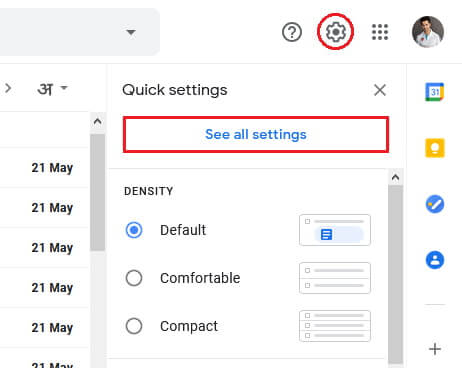
Step 2. After that, go to the Gear icon at the top right of the Gmail window and click on See All Settings option.
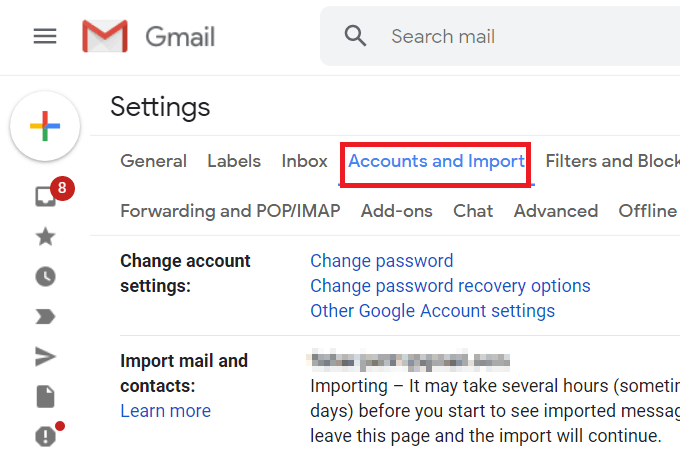
Step 3. Now, Click on Accounts and Import in the middle of the settings page.
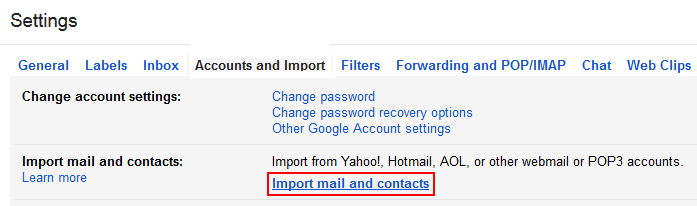
Step 4. Then, scroll down to select Import Mail and Contacts section.
Step 4. A pop-up window will appear where enter the Email Address of your Shaw Mail and hit on Continue.
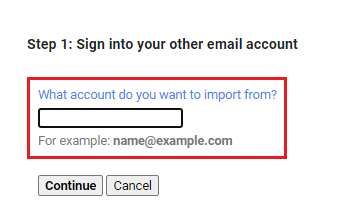
Note: It will confirm the migration request by email.
Step 6. Select items to import and click Start Import to begin the migration.
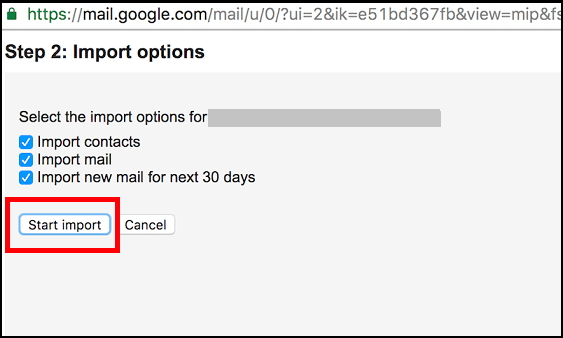
You can transfer Shaw email to Gmail manually, but this method comes with certain limitations, as explained below.
Downsides of Manual Solution
- Using this method you can not transfer the complete Shaw mailbox to Gmail. It exports emails only from the Inbox folder.
- It is a time-consuming process. It takes time according to the number of emails. Sometimes it takes 2-3 days to complete the process.
- There are no email filter options to import selected emails from Shaw Mail to Gmail.
How to Move Emails from Shaw Mail to Gmail in Bulk?
Try the Xtraxtor Email Migration Tool to import Shaw emails to Gmail without any hassle. There are no limitations on the number of emails. It is able to migrate multiple Shaw emails to Gmail at once. In this application, you do not need to worry about the hierarchy of Shaw email folders; this tool maintains it well.
Additionally, this tool also allows you to directly transfer Shaw emails to other webmail accounts. This software also comes with a free trial version, so just download it on your Windows system and transfer Shaw emails to Gmail using 5 simple steps.

Steps to Import Shaw Email to Gmail with Attachments Are as Follows;
Step 1. First of all, Download and Xtraxtor on your Windows PC and click on the Open tab.
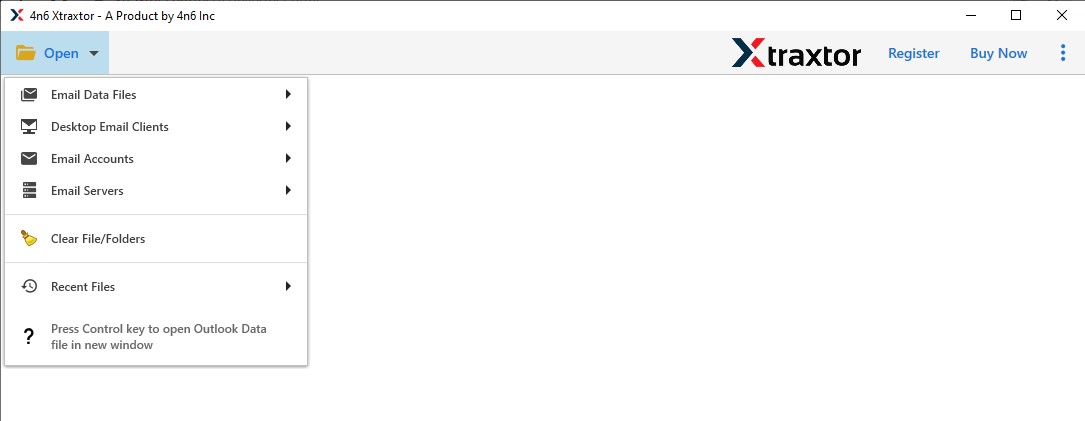
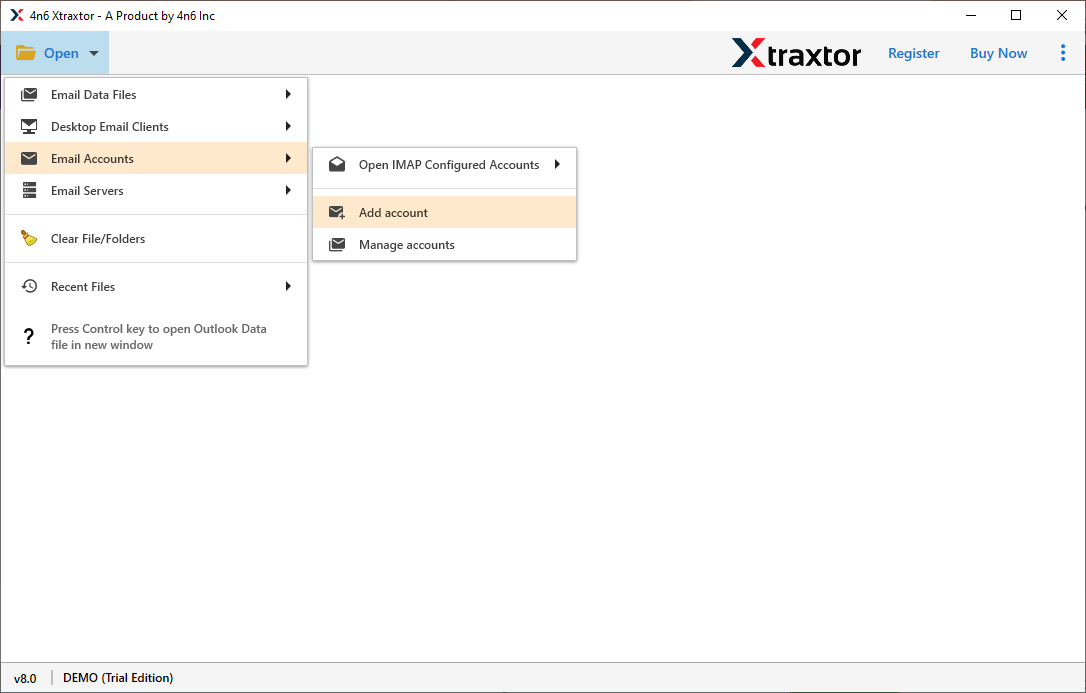
Step 2. Now click on Email Account and select Add Account option.
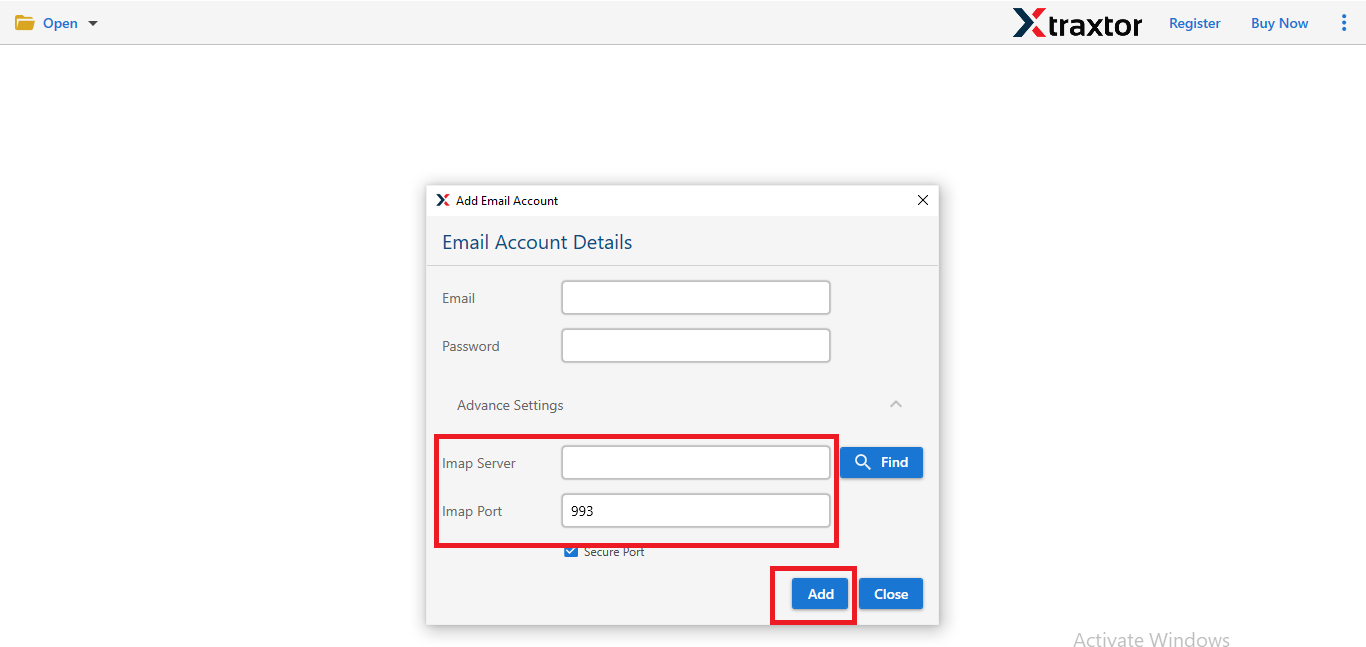
Step 3. In the “Add Email Account” window, enter your Shaw Mail login details and click Advanced settings.
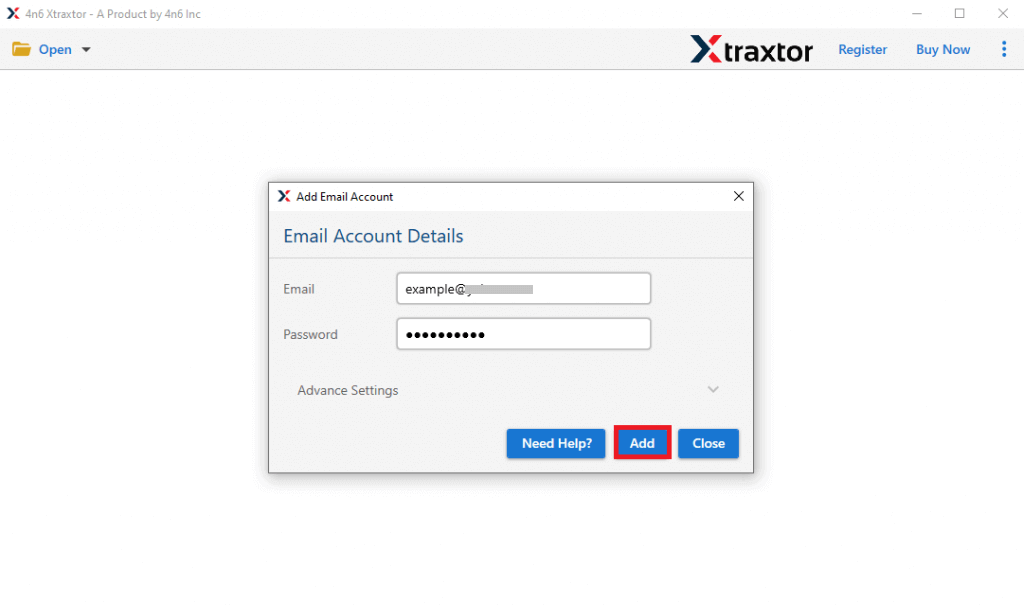
Step 4. Enter the IMAP Server and Port number in the respective field. After that click on Add button.
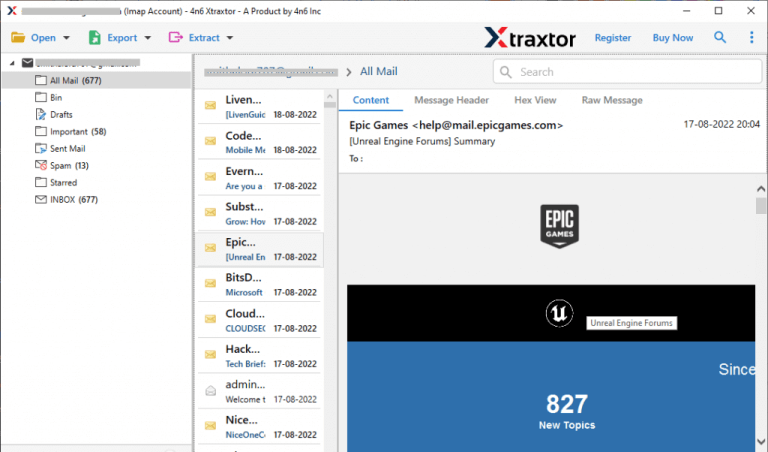
Step 5. Now, the Software loads all mailbox data from your account to view before transferring them.
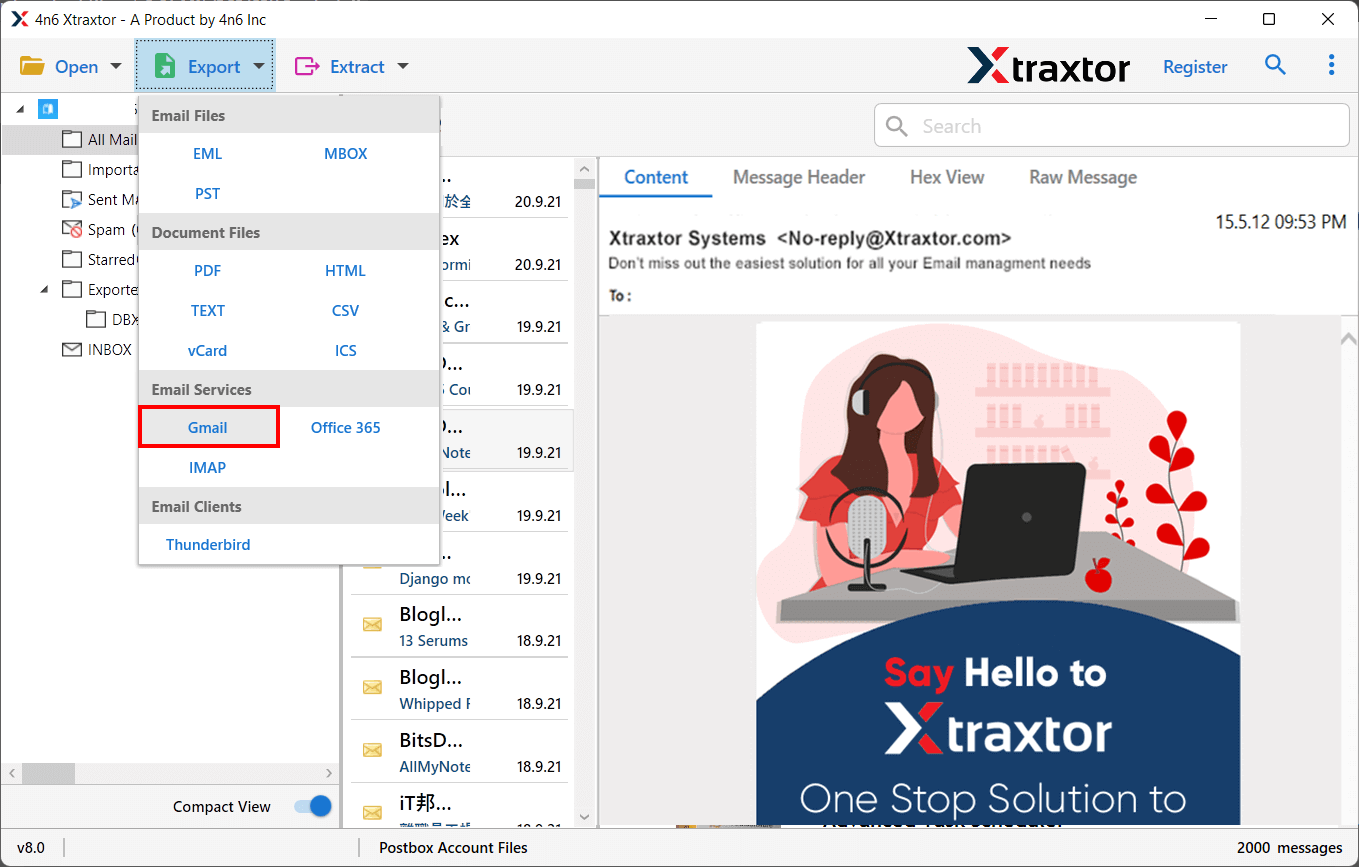
Step 6. After that, Click on Export and select Gmail from the given Email services list.
Step 7. Select the folders & subfolders that you want to forward Shaw Mail to Gmail.
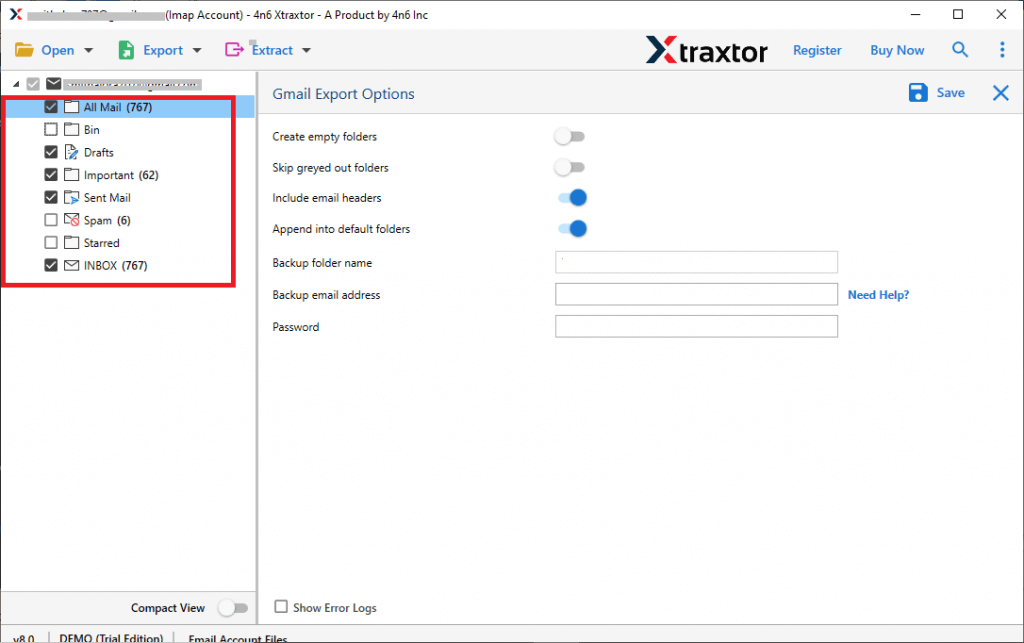
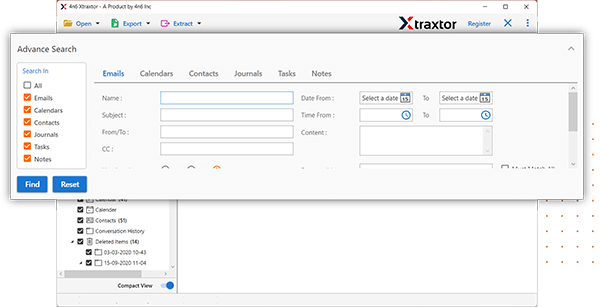
Step 8. Apply the filter option to migrate selected emails from Shaw to Gmail.
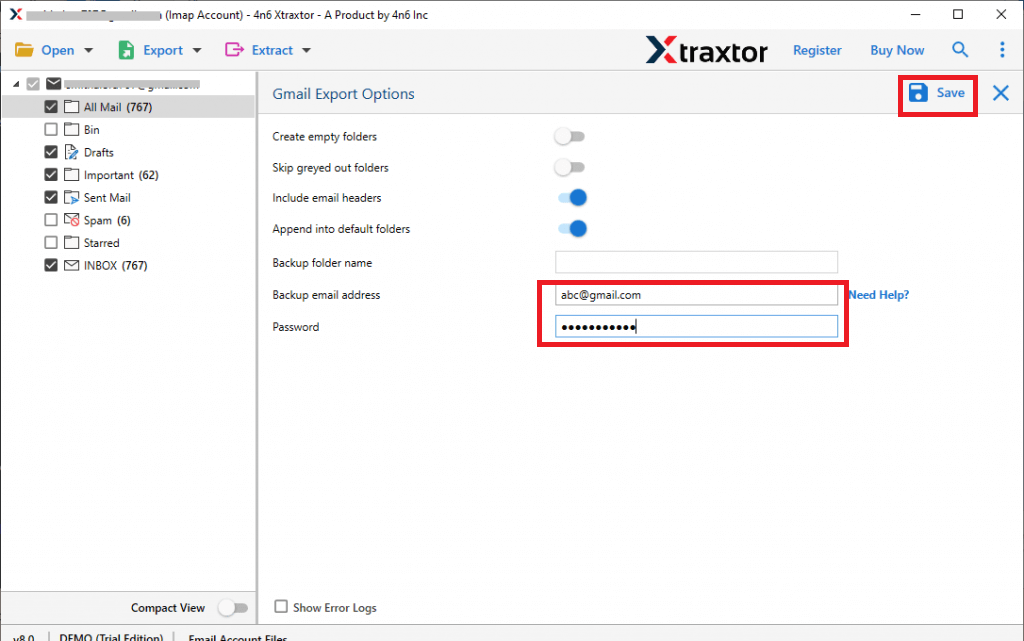
Step 9. Enter the Email Id and Password of Gmail account and then click on the Save button.
Hence you can easily transfer Shaw email to Gmail in a few simple clicks.
Read the Superb Features of Shaw Mail to Gmail Migration Tool
- Batch Mode: Transfer emails from multiple Shaw accounts to Gmail simultaneously.
- Complete Migration: Migrate Shaw emails with all metadata, including attachments, images, and hyperlinks.
- Single-Move Migration: Move entire mailbox items from Shaw to Gmail in one go.
- Flexible Filters: Migrate Shaw emails based on criteria like date range, email address, or subject.
- Data Integrity: 100% preservation of data with no loss during migration.
- Folder Hierarchy: Maintains the original folder structure while transferring to Gmail.
- Multiple Export Formats: Export Shaw emails to over 20 formats, including PST, EML, MBOX, PDF, and HTML.
- Standalone Platform: No additional software needed for migration.
- User-Friendly: Simple interface suitable for novice users without technical expertise.
- Windows Compatibility: Works on all Windows versions, including Windows 11.
- Free Demo Version: Try before you buy with a demo version.
- 24/7 Support: Dedicated support team available for assistance.

FAQs- Shaw Email to Gmail Migration Tool
Q1. Can I transfer email from multiple Shaw Mail accounts to Gmail accounts?
A- Yes, with this tool, you can perform the batch migration from multiple accounts in single go.
Q2. Is it possible to import Shaw email to another email platform?
A- Yes, using this utility you can easily transfer Shaw Mail account emails to any other email account.
Q3. Does, this software maintains all email properties during the migration process?
A- Yes, it maintains the all email components and attributes during migrating Shaw email to Gmail account.
Final Recommendation: Which Method Should You Choose?
The right method depends on how many emails you have and how important they are. If your mailbox is small and contains only a few emails, the manual method can work fine. However, if you have a large mailbox or important emails that you cannot afford to lose, a tool-based migration is the safer option. For users changing jobs or planning long-term use, an automated solution is the best choice. If your emails really matter, it’s better not to take risks. A professional migration solution ensures a fast, secure, and accurate transfer without losing any data.