If you want to migrate from AOL Mail to Gmail, you need to transfer its emails first. In this article, we will explore two ways to transfer AOL Mail to Gmail: automatic and manual. To ensure no data is lost, we will also provide instructions for managing your email data and transferring it from one account to another. So, without further delay, let’s start reading this article to know more.
What makes Gmail an ideal choice for Users?
Many AOL users migrate to Gmail because Gmail offers:
- A modern and easy-to-use interface
- 15 GB of free cloud storage
- Strong spam and phishing protection
- Easy search to find old emails
- Built-in access to Google Drive, Calendar, Meet, and Contacts
- Access from mobile, desktop, and browser without setup issues
If these benefits matter to you, moving your AOL emails to Gmail makes sense.
Now, talking about the methods, here, we have two options. You can choose a manual way, which will use Gmail’s import feature. And if it doesn’t work for you, you can also try an alternate solution that comes with a free trial version to check its working process.
So, let’s start to understand both methods in more detail.
How to Transfer AOL Mail to Gmail Manually (Free Method)
Gmail allows you to add your AOL account and automatically import your emails using POP.
Follow these steps:
- Open your Gmail account.
- Click Settings (gear icon) >> See all settings.
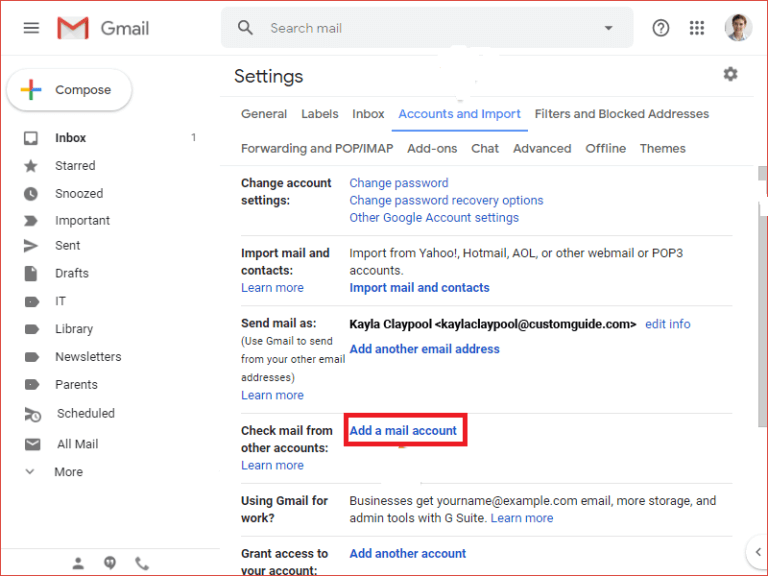
- Open the Accounts and Import tab.
- Click Add a mail account.
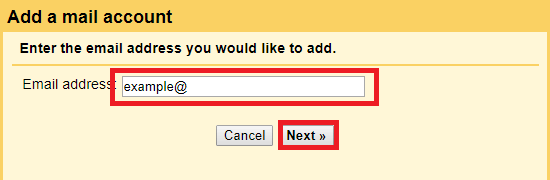
- Enter your AOL Mail email address >> click Next.
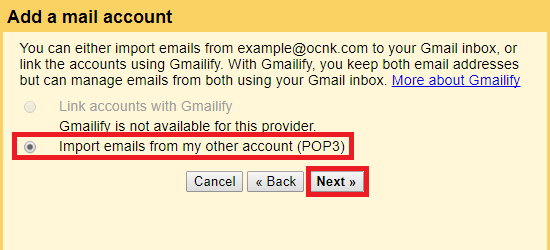
- Choose Import emails from my other account (POP3).
- Enter your AOL username, password, and required POP settings.
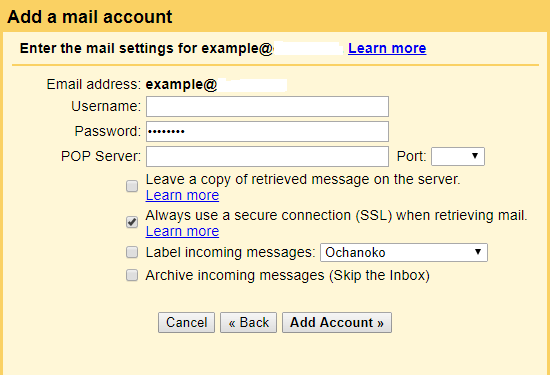
- Click Add Account.
Gmail will now start importing your AOL emails automatically.
Limitations of the Manual Method
While the manual method is free, it has some real limitations:
- It imports emails only, not contacts, folders, or other data
- No option to choose specific emails or apply filters
- The process is slow if you have thousands of emails
- If the import gets interrupted, data may be duplicated or fail
- Folders may not appear in the same structure
If these limitations don’t affect you, the manual method is enough.
If you want a smoother, safer, and more controlled migration, then an automated solution may be needed.
How to Move Emails from AOL to Gmail Professionally?
If you have a large AOL mailbox, multiple folders, many attachments, or you want to move only specific emails, the manual method may not work smoothly. In such cases, using a professional migration tool makes the process much easier. Xtraxtor Email Migration Tool helps you add your AOL account, choose the folders you want, and even filter emails by date, subject, or sender. It transfers your AOL Mail to Gmail safely without losing any data and keeps your folder structure exactly the same.
In simple words, this software removes the manual work, avoids errors, and gives you full control over what to migrate from your AOL account to Gmail.
Click on the free download button and check its complete working process.

Steps to Transfer AOL Mail to Gmail Account
Step 1. Install and launch Xtraxtor software on your system.
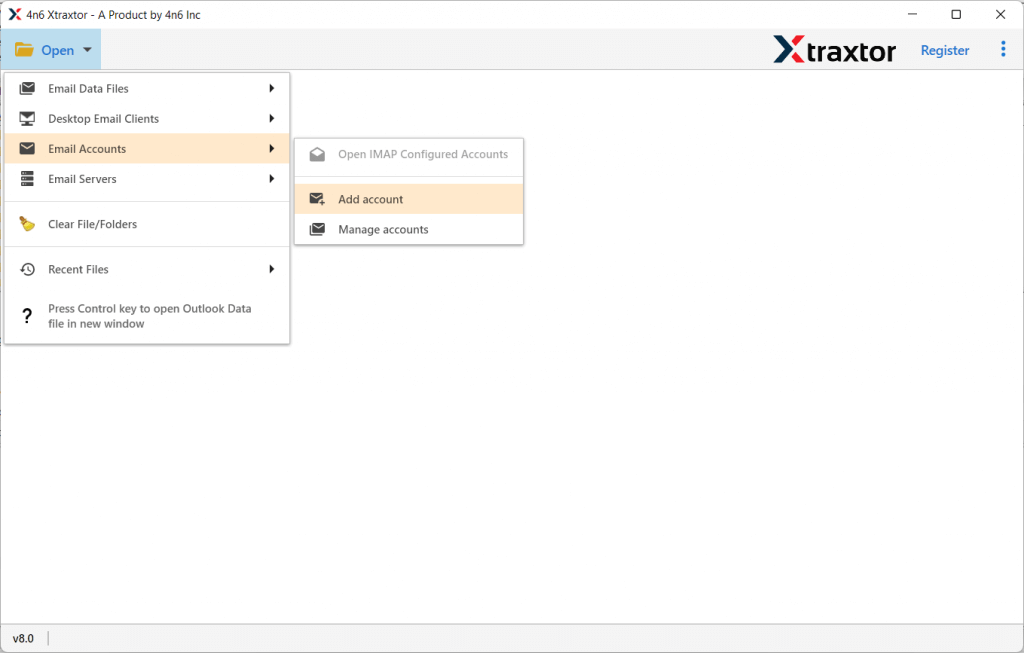
Step 2. After that, select Open >> Email Accounts >> Add Account.
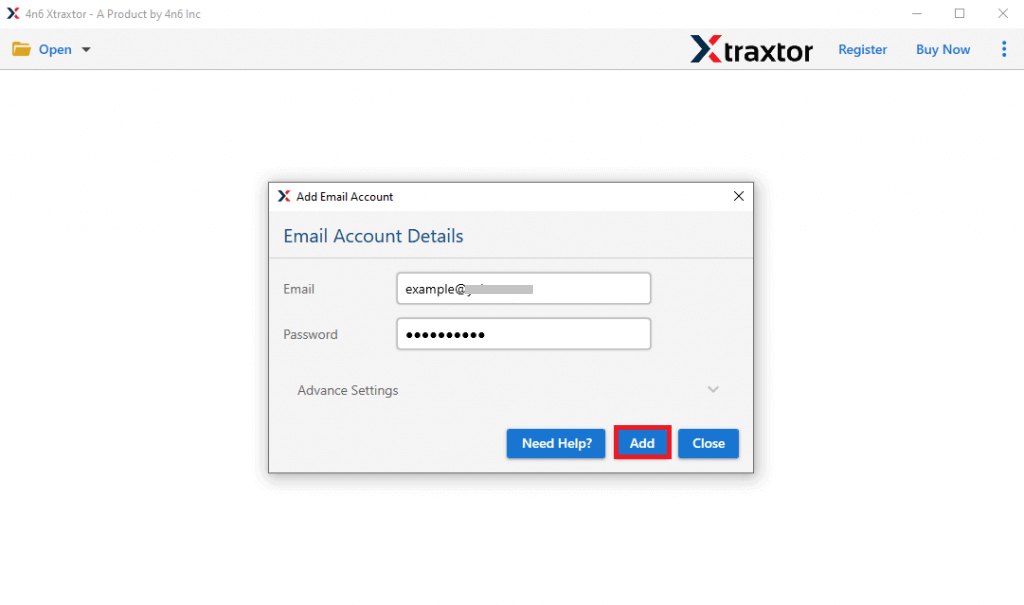
Step 3. Enter your AOL Mail login details and click the Add button.
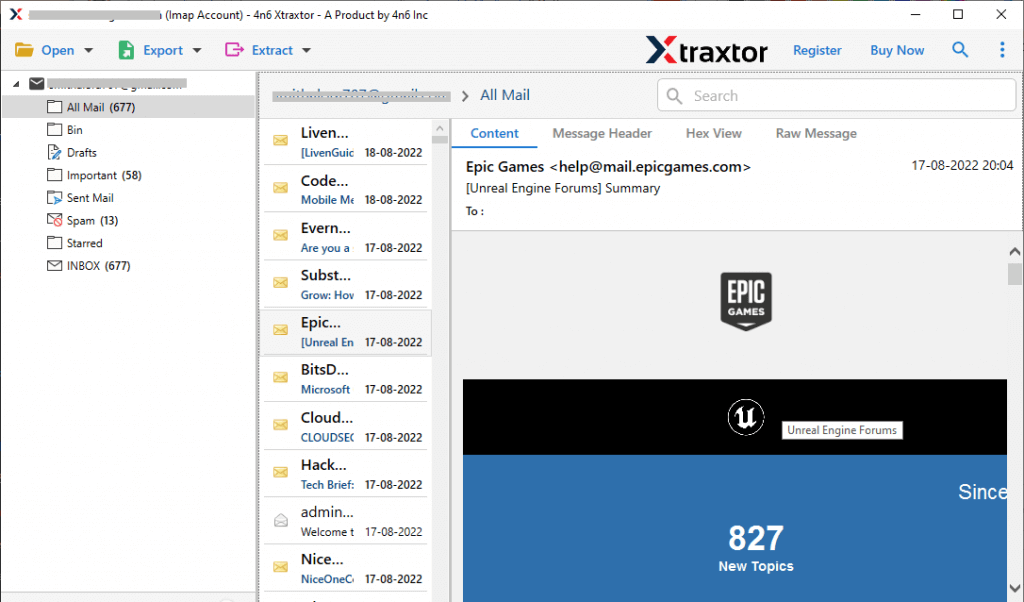
Step 4. Here you can view your emails before transferring them.
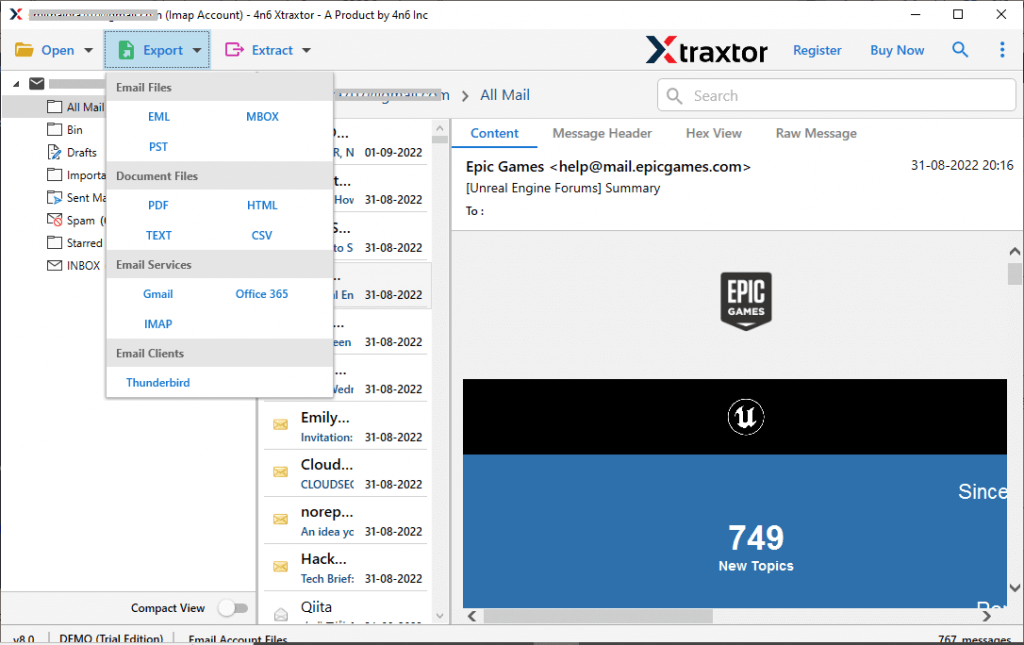
Step 5. Click on Export and choose Gmail from the given options.
Step 6. Here, you can select the email folders that are important and need to migrate.
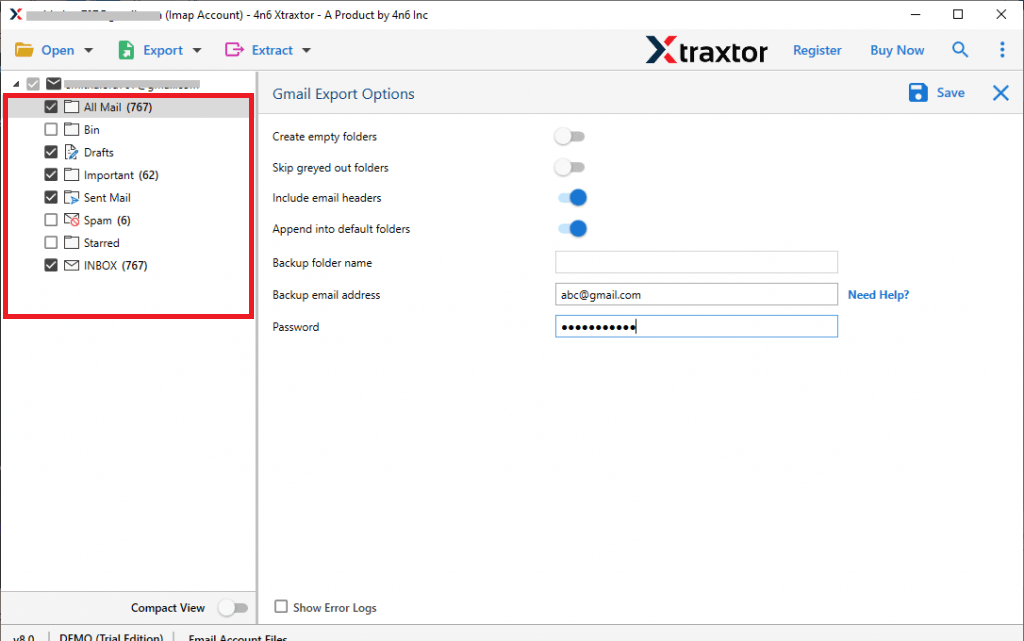
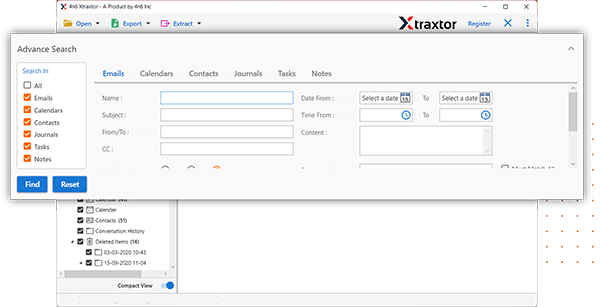
Step 7. Apply the filters and transfer selective emails only.
Step 8. Enter your Gmail login details and click on the Save button.
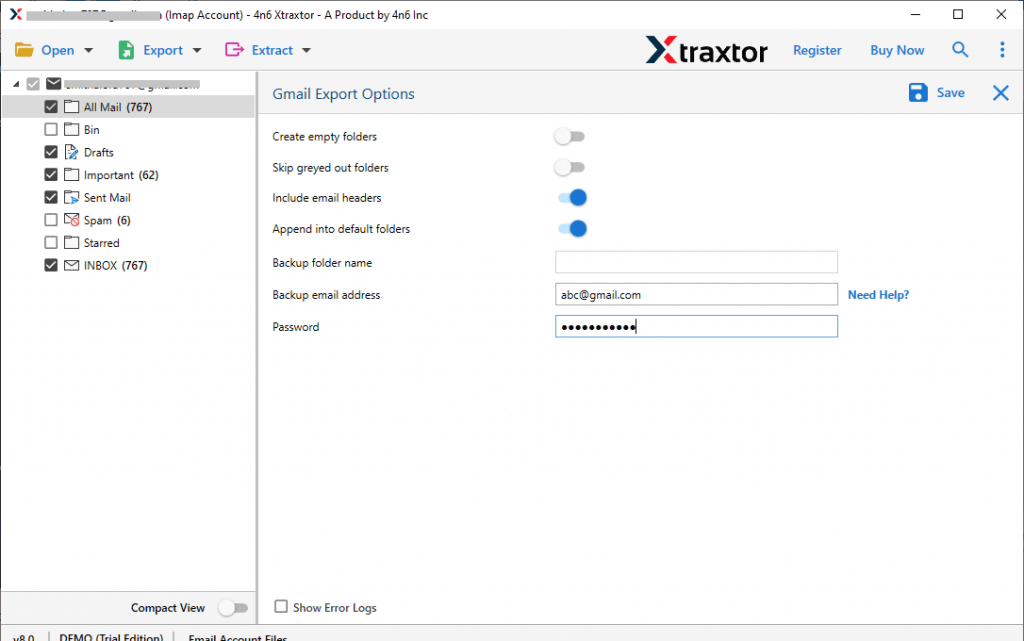
Done! Here, you migrate AOL Emails to Gmail account along with attachments.
Tip: This is usually faster and safer for large or sensitive mailbox data.
Conclusion
So, we are done with providing you with the two best approaches to transfer AOL Mail to Gmail Account. While implementing these two methods, we have observed that moving from AOL Mail to Gmail makes sense if you want a modern, feature-rich email platform.
You can use the manual method if you only need to import basic emails. But if you have a large mailbox, need selective migration, or want everything (including folders and attachments) to transfer safely, an automated method is more reliable.
Choose the method that suits your data size, time, and technical comfort level.