If you are using cPanel email account & want to extract attachments from emails, you are not alone. Many users want to save PDFs, images or documents from their cPanel mailbox without keeping the email body. But here is the problem. cPanel does not provide a direct option to download attachments in bulk. However, we will guide you with all the possible ways to extract attachments from cPanel emails.
You will learn:
- Manual method
- Bulk extraction method
- Which method is best for your situation
Let’s start from the basics.
So, you are looking to extract attachments from cPanel emails, but do you know what it means exactly? You will only get attached files with your cPanel emails, without deleting or modifying emails. And it will save directly to your system. It can be your PDF files, Word documents, images, or a zip file. So, a large amount of data can be attached to your emails, and it should be extracted precisely to avoid data loss or data corruption.
No matter what reasons you are downloading attachments from cPanel emails, knowing the right procedure is important.
Now, we will understand the complete step-by-step process of two different methods. We have chosen two unique methods so that you can choose as per your needs and requirements.
How to Extract Attachments from cPanel Emails Manually?
This is the most basic and commonly used method by users to save their attachments from cPanel emails.
Follow the steps below carefully to get the desired results;
- First of all, log in to your cPanel account.
- Next, click on the list of email accounts and choose the required one.
- Now, tap Check Email and choose the Roundcube Webmail option.
- After that, check its emails from which you want to extract attachments.
- Click on the attachment & download it to your system.
Done!! You must have gotten your cPanel email attachments to your desktop.
Note: You must repeat these steps for each email.
How to Export Multiple cPanel Email Attachments Professionally?
If you want to extract attachments in bulk, a professional attachment extractor tool is the best solution. Xtraxtor Email Attachments Extractor is one such example of an automated solution that can let you export complete attachments from cPanel emails even from large mailboxes as well. It is useful for all types of users, whether it’s business users or administrators. Also, you can extract attachments from multiple cPanel email accounts in a single attempt.
So, click on the free download button and install it and use it to see if it works for you.

Note: It’s free to check and analyse this tool completely. However, you will be able to extract attachments from 10 emails only. To get more, you will need to upgrade to its licensed version.
Steps to Extract Attachments from cPanel Webmail
Step 1. Run the Xtraxtor software on your Windows PC.
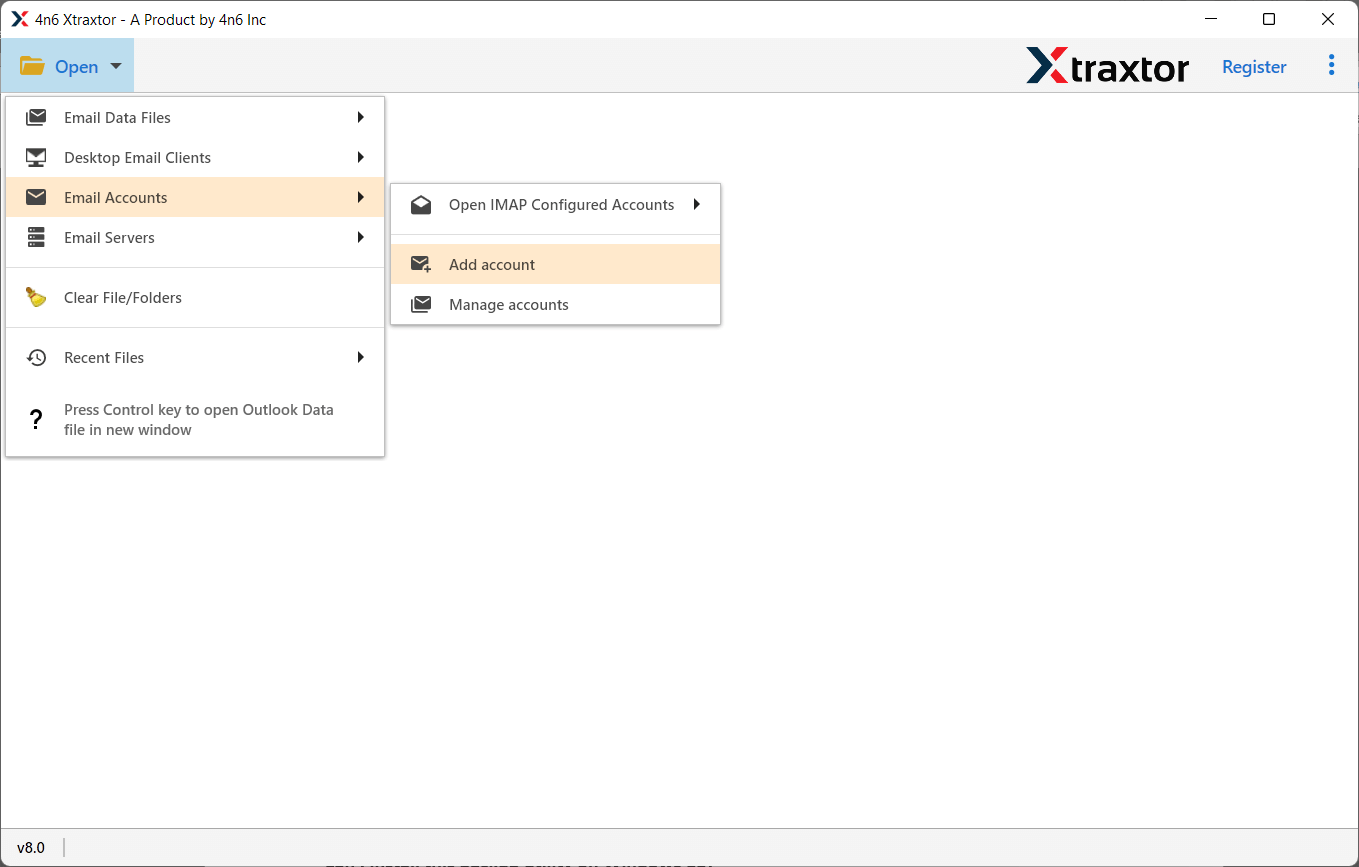
Step 2. Now, click on the Open tab >> Email Account >> Add Account.
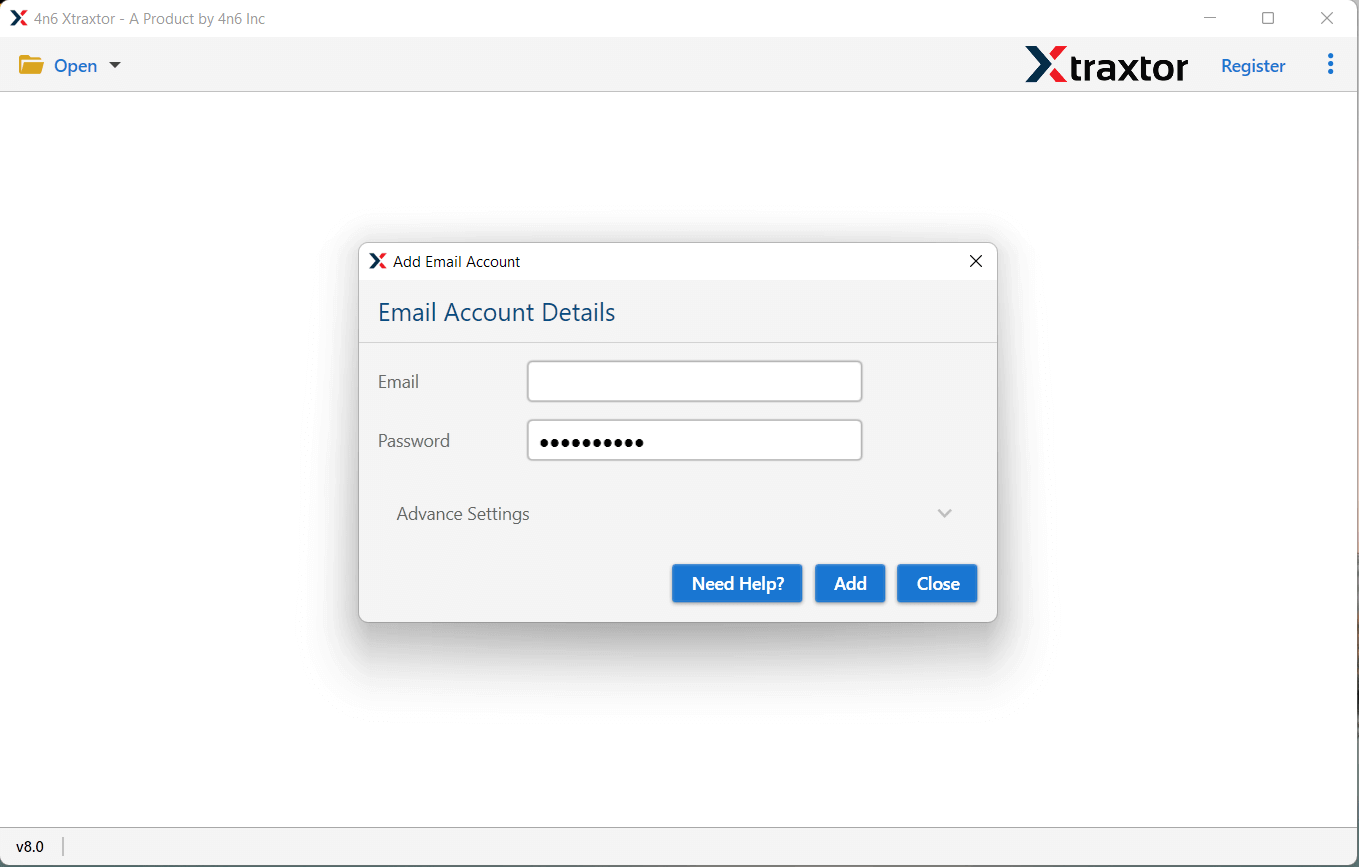
Step 3. After that, provide your cPanel email account credentials & click the Add button.
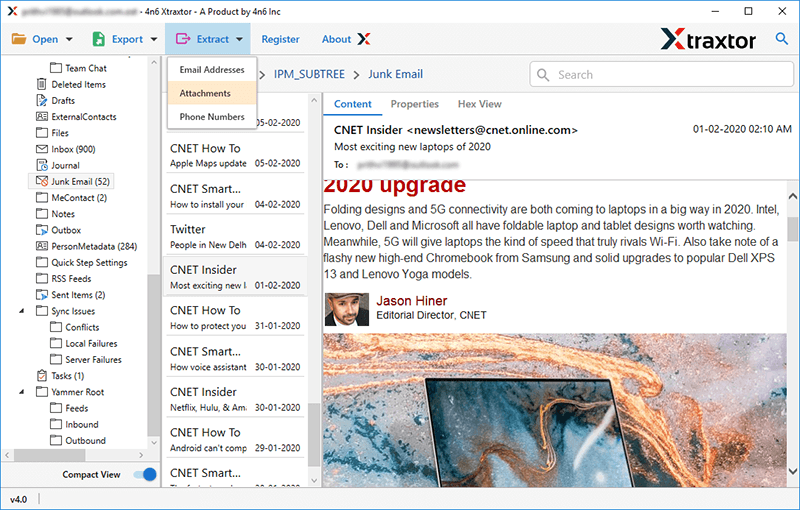
Step 4. Then, click on the Extract tab and choose Attachment from the given options.
Step 5. Browse the destination path and click on the Save button to start.
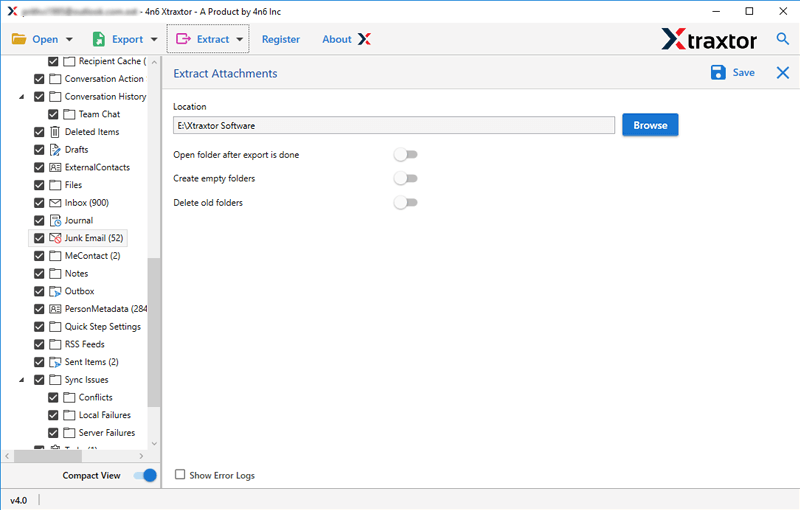
Wait for a while! You will get a notification that the process has been completed and you will be redirected to your chosen location automatically.
Now, click and check all your exported cPanel email attachments.
Why Users Prefer Xtraxtor Over Manual Methods?
- No Bulk Option in cPanel: cPanel does not provide a built-in option to extract attachments in bulk. Xtraxtor solves this issue as it allows users to download all attachments from cPanel emails in a single process.
- Save Time and Efforts: Manually opening emails and saving attachments one by one is slow and exhausting. This automated software makes the entire process quick and completes the task easily.
- Easily Handle Large Mailboxes: As you know managing hundreds or thousands of emails manually is not practical. This tool is designed to handle large cPanel mailboxes smoothly without errors.
- Advanced Filter Options: With this software, users can extract only required attachments using filters like file type, date range, sender, or specific folders, ensuring accurate results.
- Safe and Secure Extraction: Xtraxtor works in read-only mode. Emails remain unchanged, and account credentials are never saved or shared, keeping data completely secure.
Final Thoughts: Which Method Should You Choose?
If you need to extract attachments from cPanel emails the right method depends on your mailbox size and needs. The manual method is suitable only when you have fewer than 10 emails and a few attachments to download. However if you have multiple emails that need filters for file types or dates or any other customized requirements then a professional tool is the better choice.