Are you looking for a solution to export IMAP to PST files? Then you’ve come to the right place. Whether you want to back up your emails or switch to a new account, after reading this blog, you’ll find the right solution. In this blog, we are going to explain how you can convert IMAP to PST, for which we will be using two methods, i.e., manual and professional.
Read this article till the end to get the best solution.
IMAP (Internet Message Access Protocol) enables users to access their emails from anywhere using any device by syncing with the server. Users can manage, delete, and create folders directly on the server and view updates from anywhere. Additionally, IMAP allow users to download messages from headers and attachments.
PST is Microsoft outlook data file that have local copies of users calendar events, contacts, emails, and tasks. It also provide data security and are easy to share option.
Before we begin, first understand why user switch to PST.
Why Users Export IMAP to PST Files?
There are many reasons why users want to convert IMAP to PST file format, some of the most important reasons are given below –
- Sometimes users need to manage and organize their work and database, then they choose PST.
- To prevent their important data from cyber attacks.
- Get the access of their email offline, or to avoid server errors.
- The IMAP server’s mailbox may be full and not allowing new messages to be stored.
- Users have a risk of losing important emails.
These were the most common reasons due to which they need PST file format.
Now let’s move towards the methods.
How to Backup IMAP Email to PST for Free?
You can easily convert emails from IMAP to PST format by configuring IMAP with the Outlook application. After setup IMAP with Outlook, follow the steps below:
- Open the Outlook application to your Windows PC.
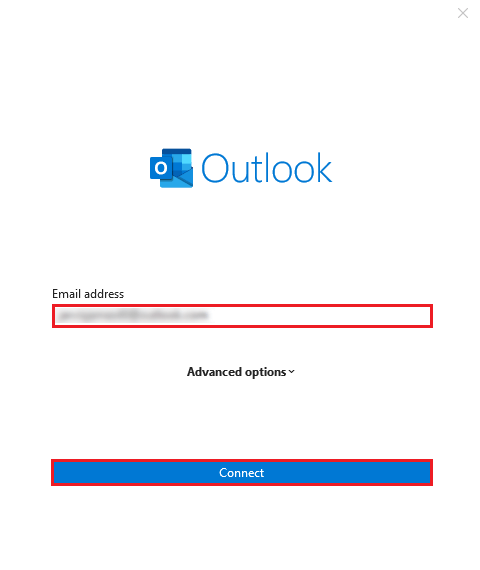
- Add your email account to Oulook First.
- Enter your Login credentials in Oulook and do login your account.
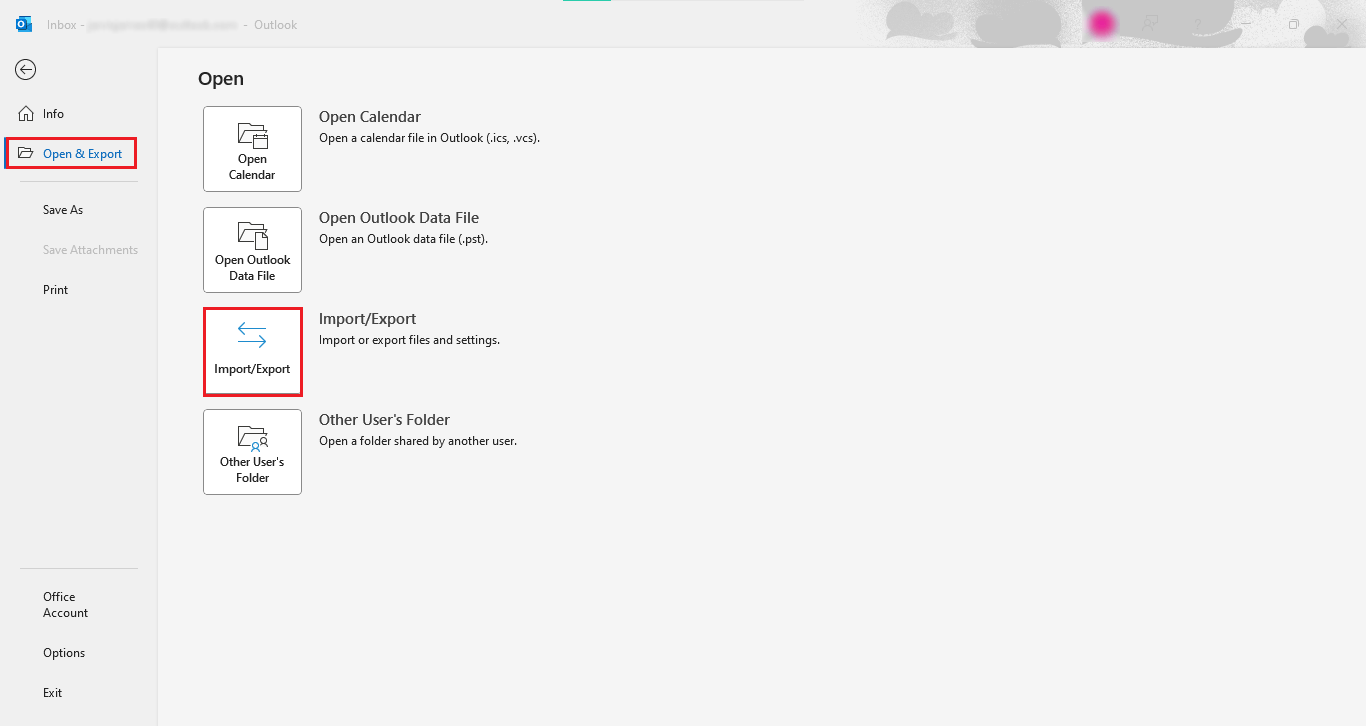
- Then, go to File menu and select.
- Go to Open & Export option and select “Import/Export” button.
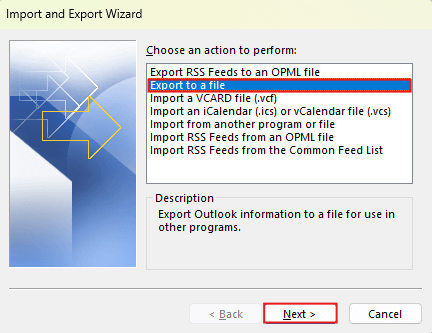
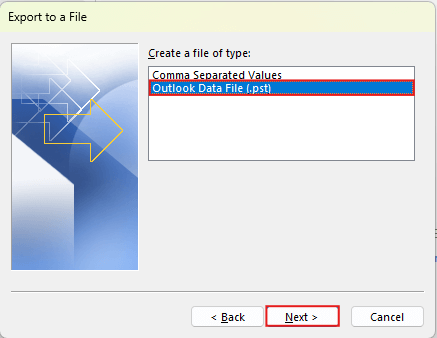
- Now, choose option “Export to a file” and click on “NEXT” button.
- Select option “Outlook Data File(.pst)” and click “OK” to export IMAP to PST.
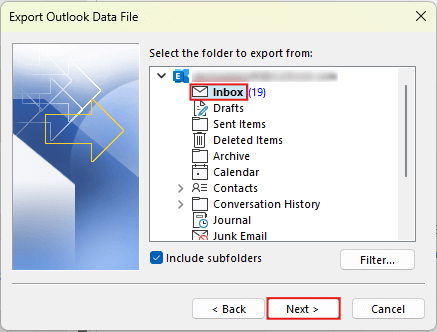
- Select folders and choose all the folders manually that you need.
- Browse the location to Save your converted file in PST format and click on the “Finish” button.
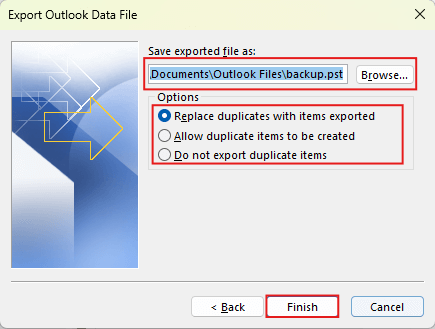
Finally, you have successfully converted the IMAP to PST file.
If you follow these steps, you can create PST files in just few clicks.
Limitations:
- This process is time-consuming for bulk data.
- The steps are lengthy and easily forgatable for non tech users.
- Even the smallest errors can lead to the permanent loss of emails.
- Selective export is not possible.
- High risk of losing email attachments.
- Older emails can not converted easily.
These were the some of the primary limiations of using manual process.
If this proces didn’t meet with your requriements you can try the next method.
How to Convert IMAP Emails to PST Professionally?
If the above method won’t work and you need an instant solution, you can try Xtraxtor software. This tool simply export IMAP to PST files while maintaining file hierarchy with email attachments. It also offers the option to selectively convert IMAP to PST using an advanced filter. Additionally, you can also backup IMAP to PST . It also offers advanced filter options for selective export.
Click below to download the free demo version of this software and test its working.

Quick Simple Steps to Export IMAP to PST Files
- Install and open the Software in your operating system.
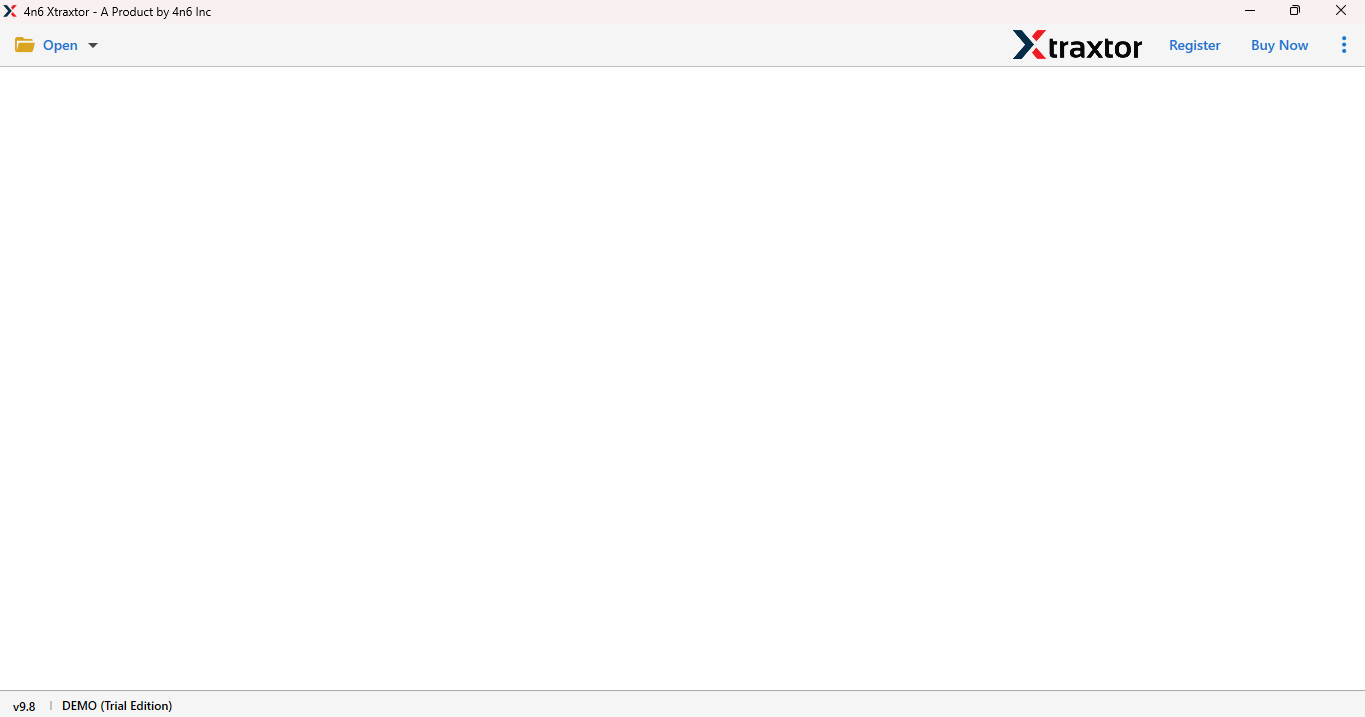
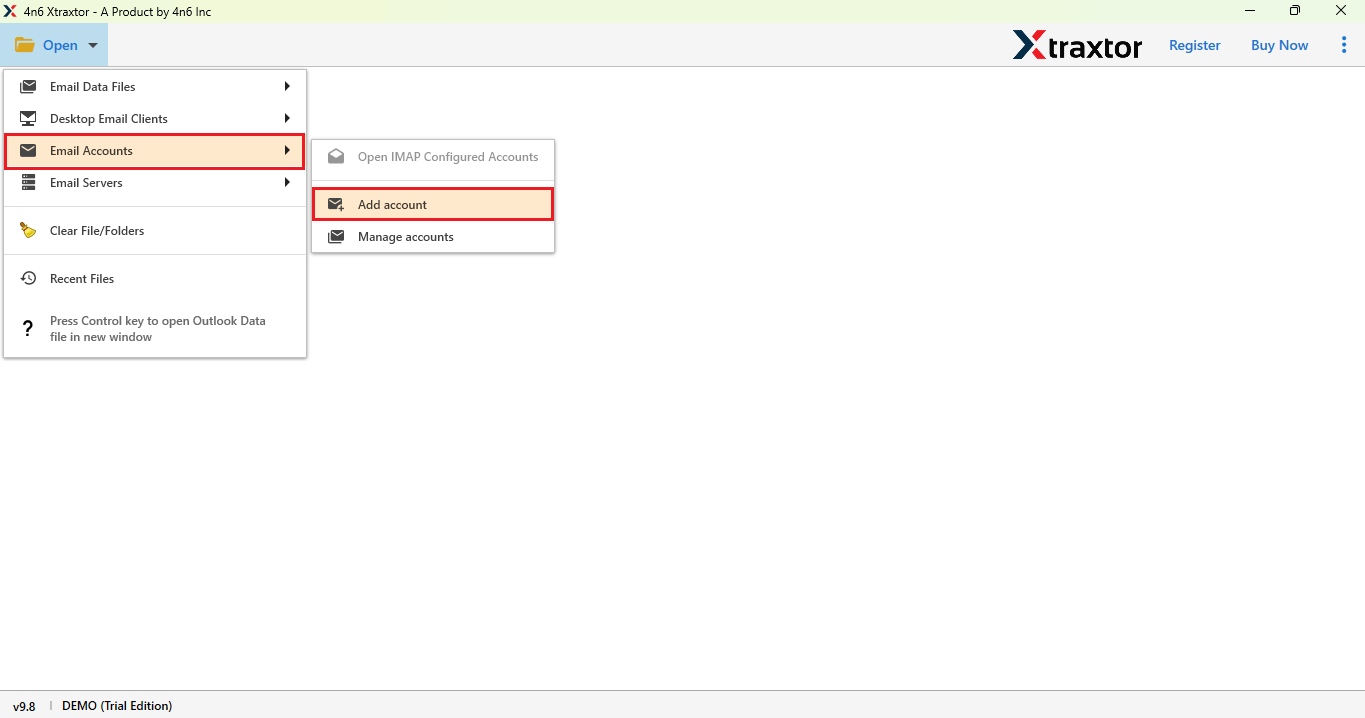
- Go to Open button and click on email account option and choose Add account.
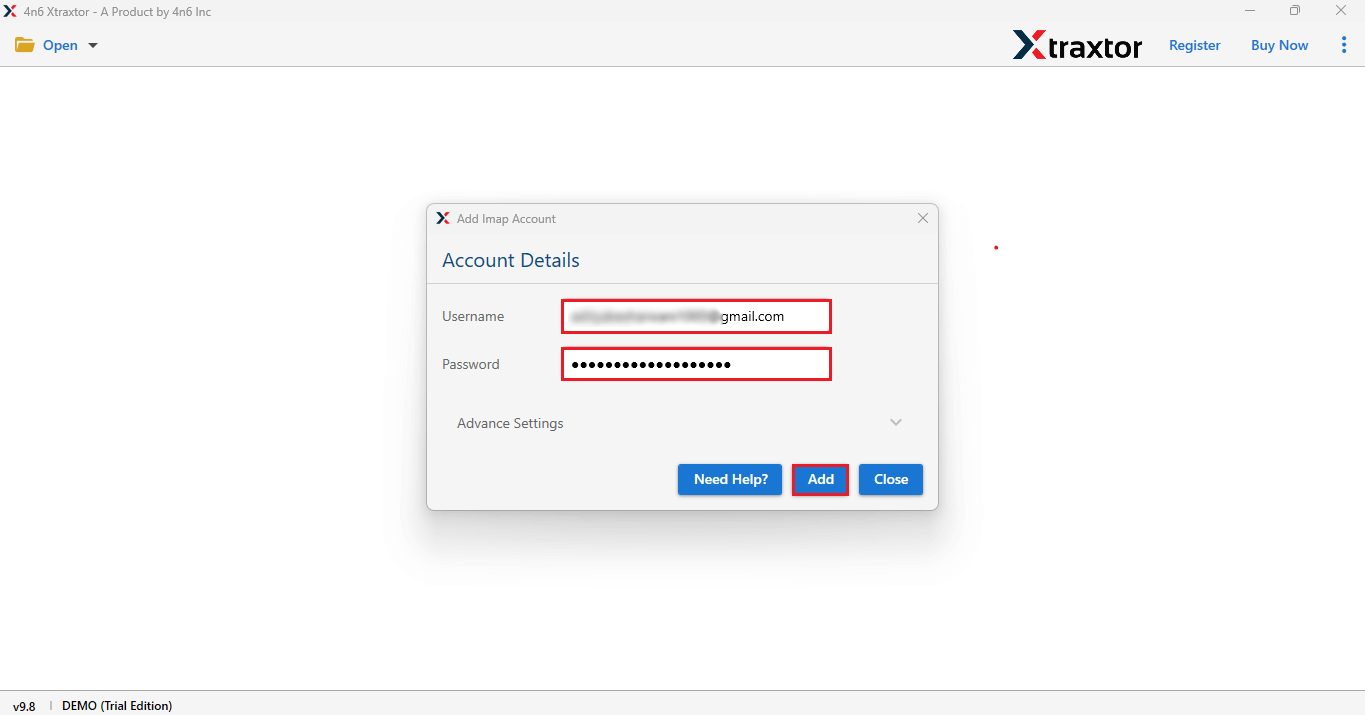
- Add your Email account with its App password.
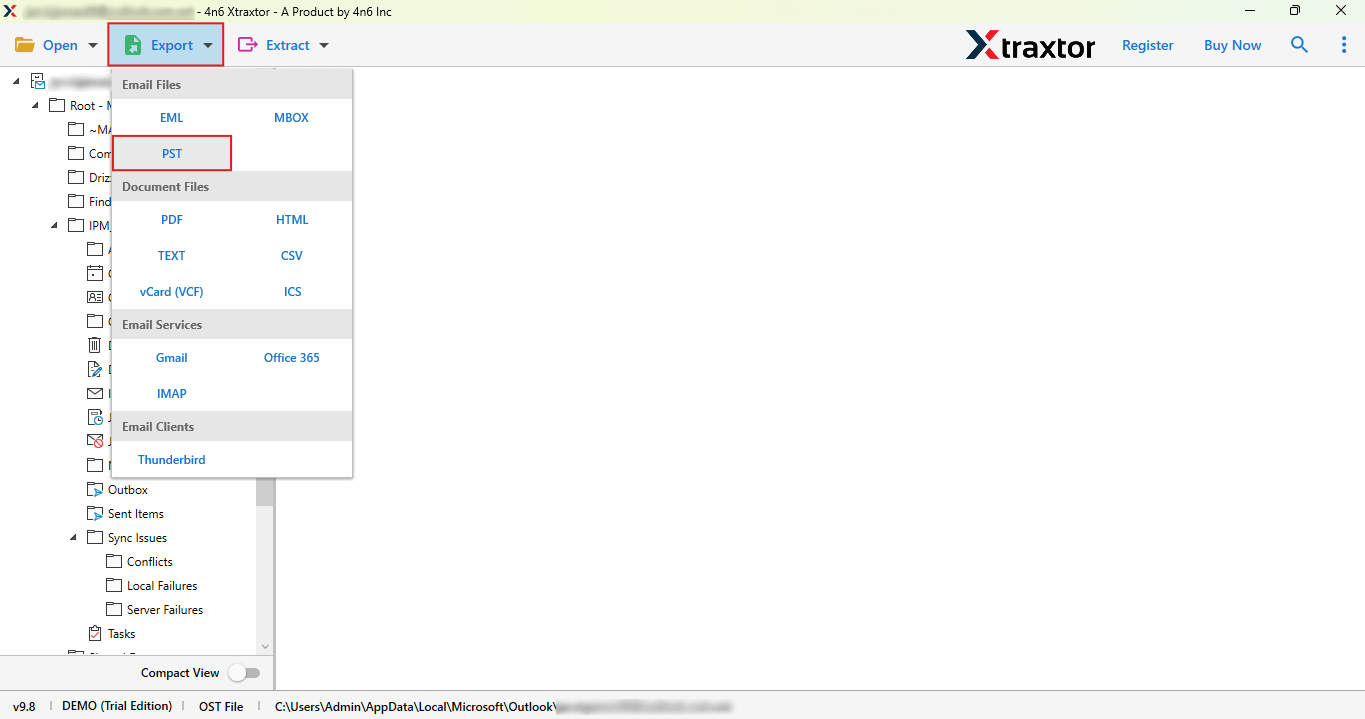
- Now click on export button and choose PST.
- Finally select the folder, browse the location and click on Save button to save PST files.
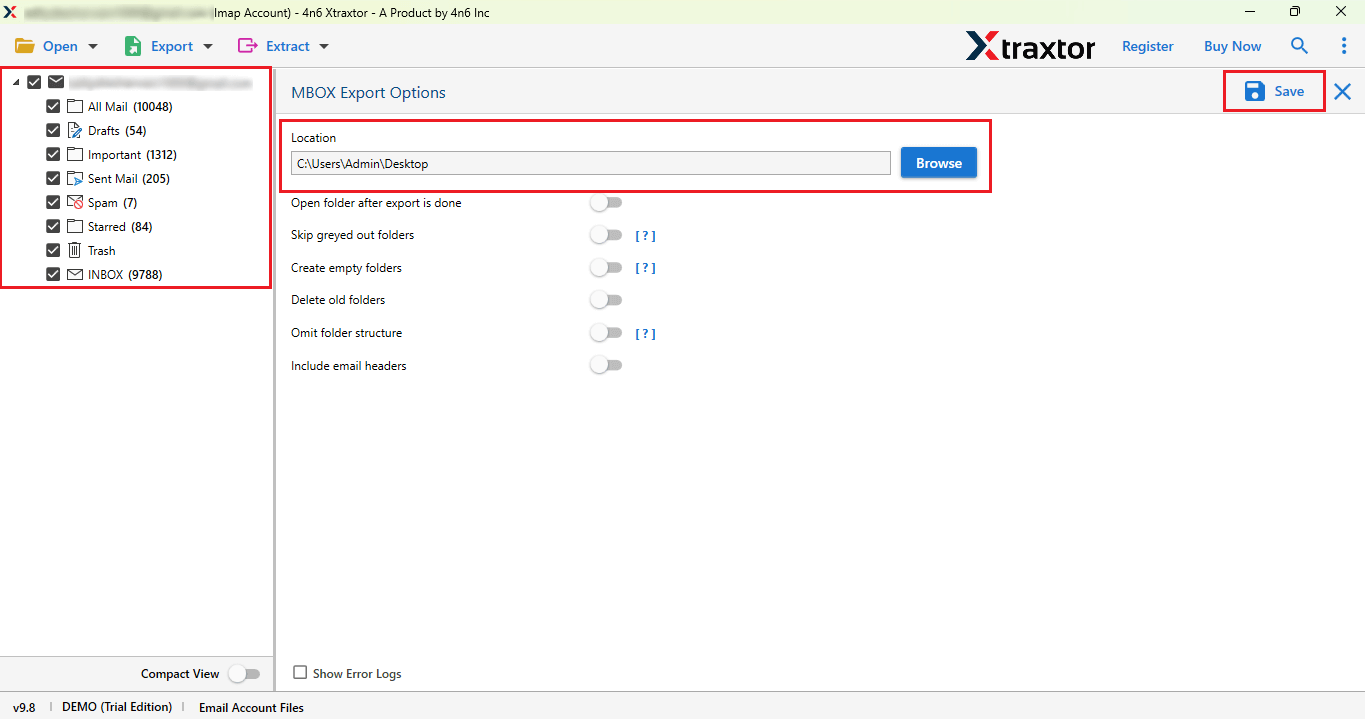
Done! you will successfully download IMAP to PST.
Using the method described above, you will easily get a PST file.
Advantages of Using Professional Solution
- This tool can safely export IMAP emails in PST file with attachments
- Supports on all windows OS such as – 11, 10, 8, 8.1, 7, XP and Vista.
- This is an all-in-one solution for back up, export, import, and convert.
- It allows you to export emails in bulk and saves you time.
- Multiple and direct export options for various file formats such as EML, PDF, PST and others.
- This tool offers a free trial version that allow you to check its working.
These were the advantages of using the professional solution.
Final Thoughts
In this blog we have explained two solutions to export IMAP to PST. While, using the manual solution we found that saving IMAP emails to PST file format it is time-consuming, carries the risk of data loss, and is a lengthy process. Therefore, using a professional solution is the best and most reliable option to convert IMAP to PST files.
You can try the a free demo version of this software to check its working. If you get satisfied with outlcomes you can also go with its licensed version. This professional solution is easy to use for both tech and non tech users.