If you are looking to transfer Hotmail emails to google workspace easily, then you don’t need to worry. This blog is just for you; in this article, we explain two ways to migrate emails from Hotmail to Google Workspace, and we test both methods to transfer Hotmail emails to Google Workspace. Read the full article to find the best solution.
Before we begin, let’s explore the reasons why users switch their email account to Google Workspace.
Hotmail is a email client and owned by Microsoft and not in mostly use after 2013. It was mostly used by individual and businesses. Google Workspace offer a wide range of services with advance features, productivity tools like – google docs, gmail, excel and google drive. Apart from this, it also assures its paid users of unbreakable security. Users who currently use Hotmail and are looking for a more reliable and secure option, or they are planning to switch to Google Workspace, will also opt for this option.
These were the main reasons why people switch their email account to google workspace.
Let’s move towards the methods to transfer hotmail email.
How to Move Hotmail Emails to Google Workspace Manually?
To manually migrate emails from hotmail we are using hotmail forwarding option. Follow the below steps.
- Open you google chrome in your operating system. (only when you don’t have Outlook application).
- Search this URL in your google chorme {live.outlook.com}.
- Enter your “login ID and Password” in Microsoft account page.
- After that, go to settings by clicking “gear icon” of your Outlook dashboard.
- Navigate option “View all Outlook Settings“
- Click on “Mail Tab” and search for the forwarding option.
- Select the “Start forwarding” option and enter your Gmail address to which you want your emails forwarded.
- Finally, choose enable “Forwarding Settings” and Click “Save” button to Forward Hotmail to Gmail.
Done! Your Hotmail mails is now migrated to Google Workspace.
This method allows you to set up automatic forwarding to your Hotmail account. Automatic forwarding in Hotmail sends new emails directly to your Google Workspace.
Limitations:
By using this method you cannot migrate your old emails data to Google Workspace. However, using this method can raises some privacy concerns when sharing data with external email addresses. Furthermore, File structure can get damaged during the export. When this storage space is full, Hotmail begins deleting older emails.
If this method won’t work and don’t give you the result you want then you can check out the next method
How to Transfer Hotmail Emails to Google Workspace Professionally?
We are using third-party solution, i.e., Xtraxtor to move Hotmail emails. This software is easy to use for both tech user and non-tech users. Thanks to its simple UI, Hotmail emails can be migrated with just few clicks. The utility can migrate bulk emails with attachments, while maintaining the original folder structure and email hierarchy.
Click below to download the “Free Trial Version” of this software to check its working.

Steps to Migrate Emails to Google Workspace
- Open the application to your operating system.
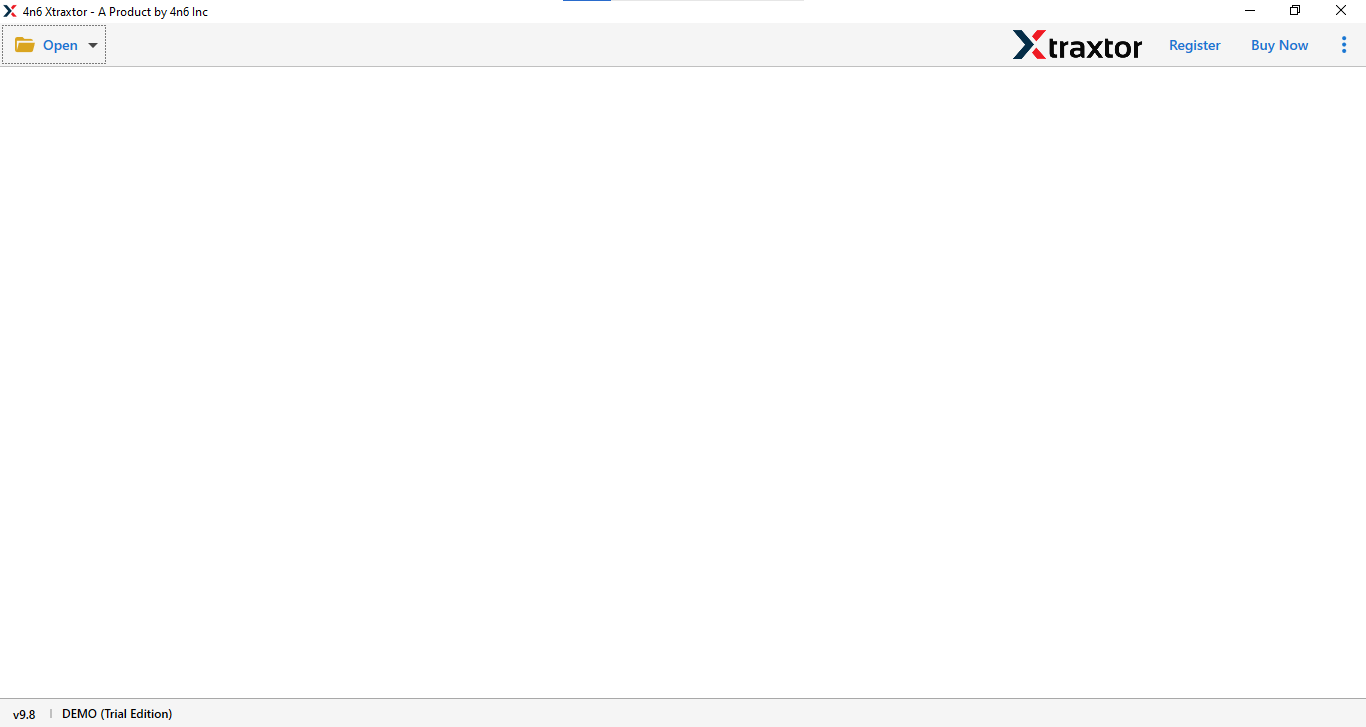
- Click on “Open” and choose “Email account“> “Add account“.
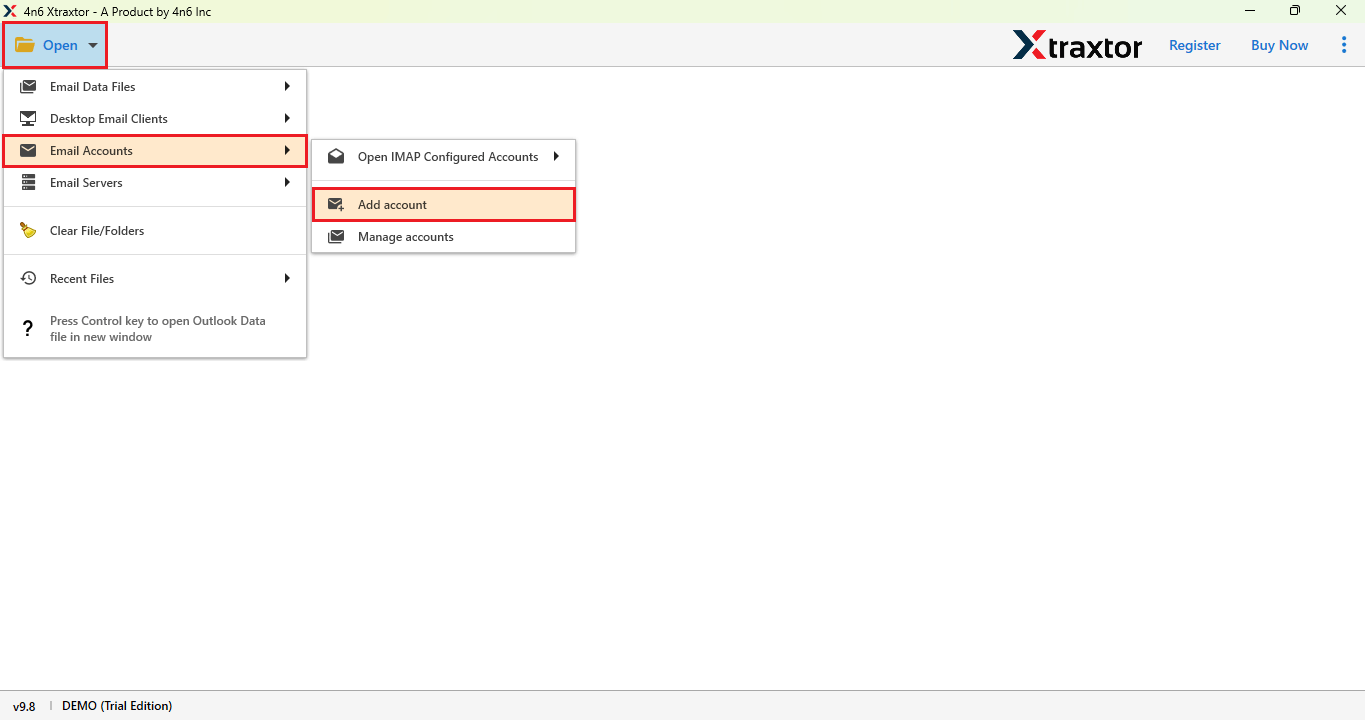
- Enter your “Login Details” here and click on “Add” button.
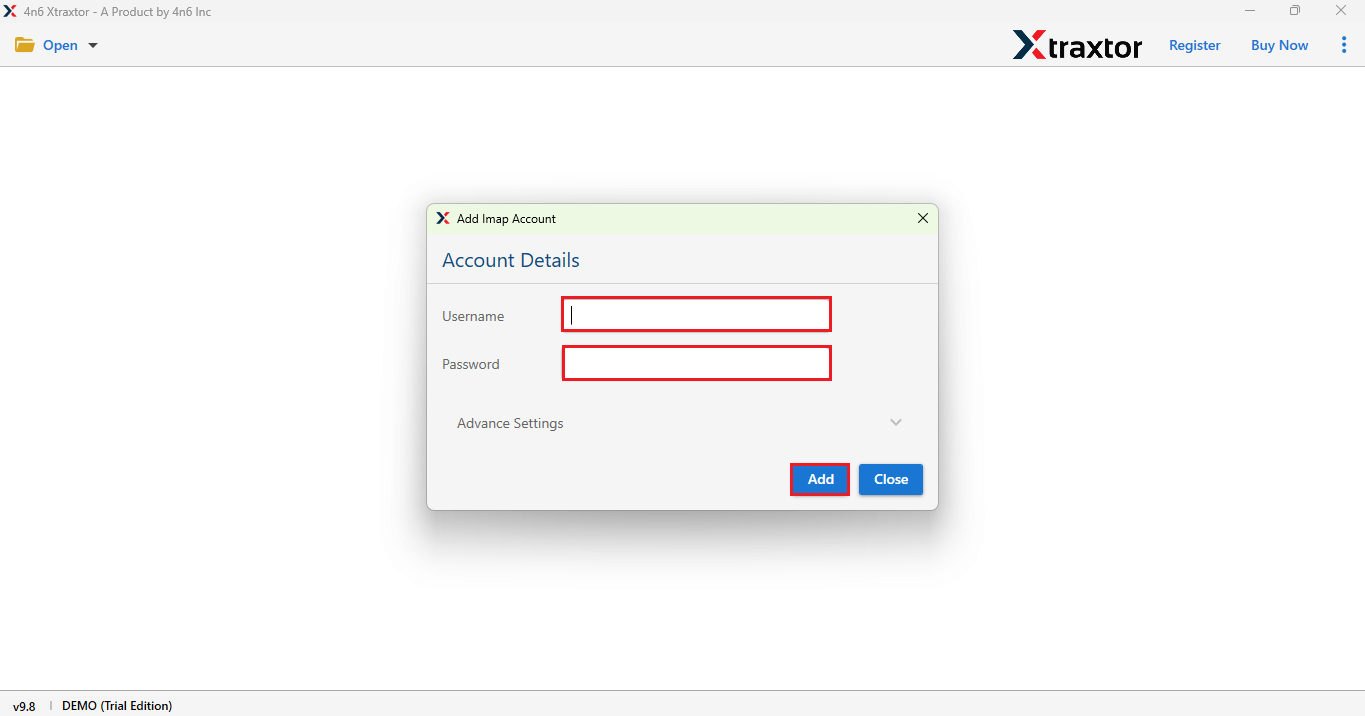
- Click on “Export” button and choose option “IMAP“.
- Select the folders as per your need.
- Enter your login ID and password along with this server address and port no “imap.gmail.com” and “993“.
- Click on “Find” button to search your Google Workspace and “Save“.
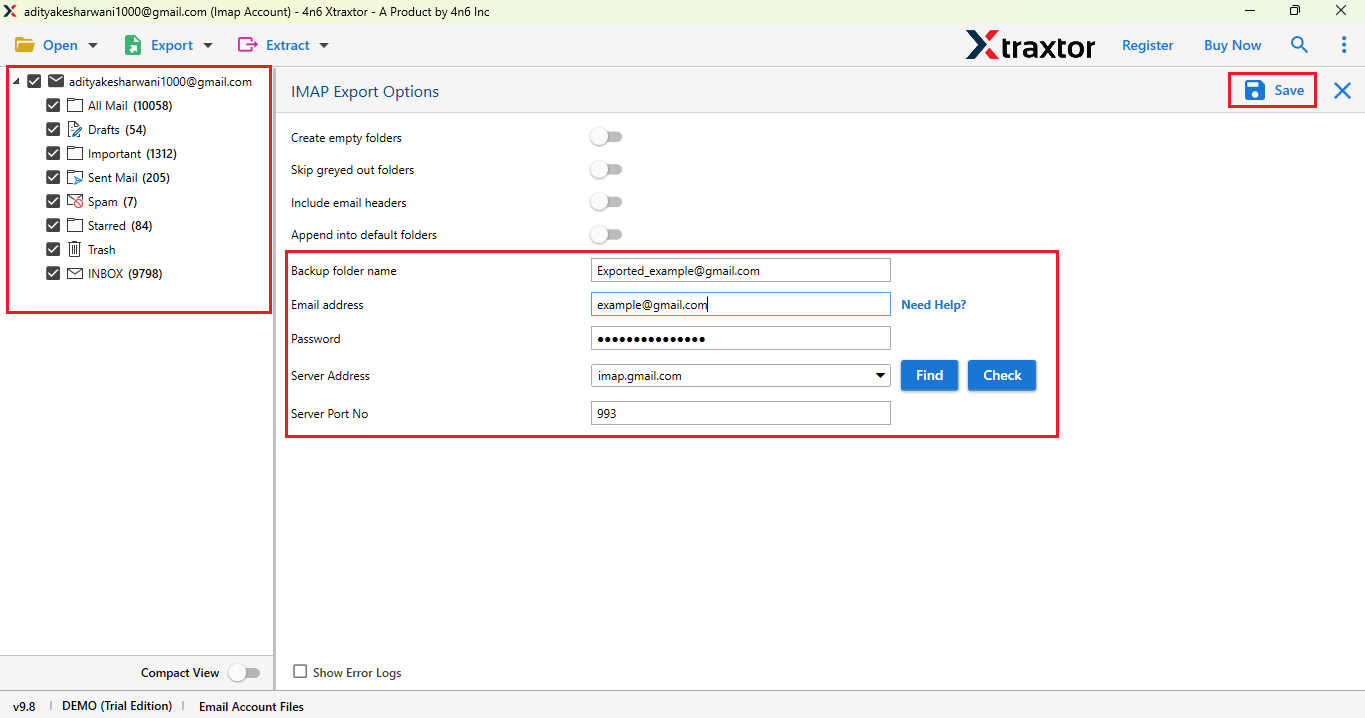
Done! Your Hotmail emails will transferred to Google.
Follow the above steps to move emails.
Advantages of Using Professional Solution
- It works on 200+ Webmail accounts for the backup process.
- This software’s user-friendly interface makes it accessible to non-tech users.
- There are various advanced filters such as to, from , date, time, cc, bcc, etc.
- It is compatible with Windows versions 11, 10, 8, 8.1, 7, and XP.
- This software give you direct, secure and easy solution.
- Maintain email property during migration.
- The solution is safe and secure and doesn’t lose any data during the process.
- It preserves folder hierarchy and transfer emails in their original format.
- You can move 10 emails in the free trial version.
- The trial version is free to use for tech and non-tech users.
- You can move Hotmail emails all at once without losing the email attachments.
These were the advantages of using professional solution.
Final Thoughts
In this blog post, we have discussed the two methods for transferring Hotmail emails to Google Workspace: the manual and the professional method. We found that the manual solution did not allow us to migrate our old email data to Google Workspace. Additionally, this method raises privacy concerns. On the other hand using the mentioned professional tool migration of email to Google Workspace become easy and safe with attachments.
You can try the free demo version of suggest tool, if you get satisfied with the results then you can go with licensed version.